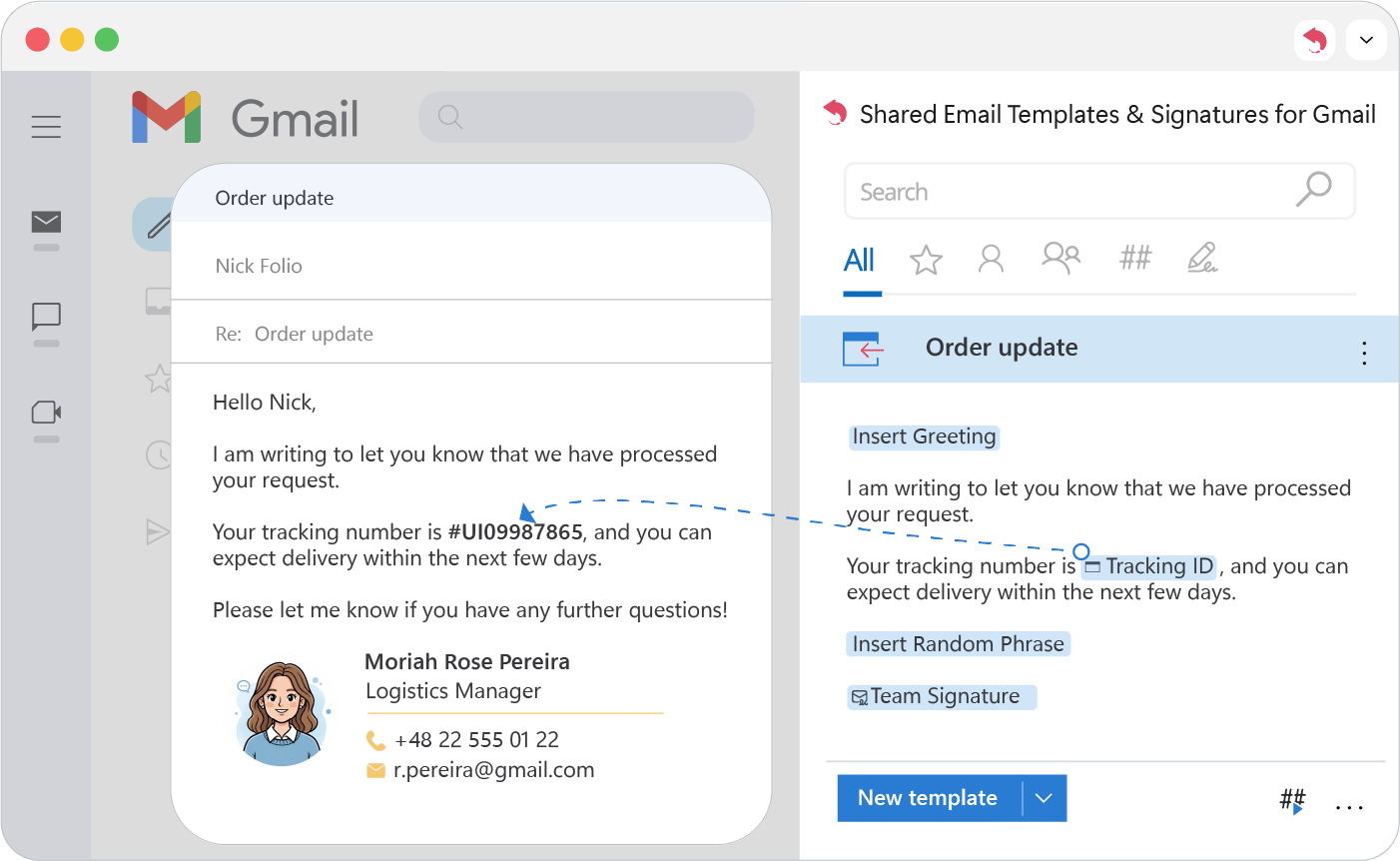
Text field
Add a text field to a Gmail template that asks for the details that change with every email, each time you insert it.
The What to enter (WTE) macro adds fields that ask for information whenever you use the template. A text field suits details that change with every email.
- 1.
Place the cursor where the text should go.
- 2.
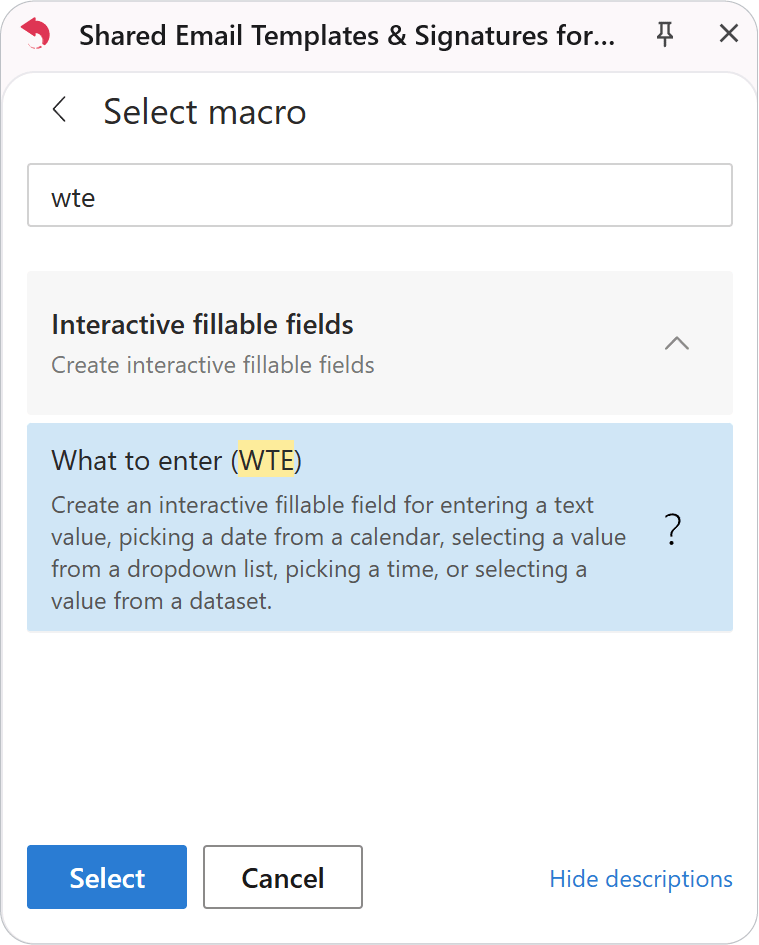
Click Insert macro and choose What to enter (WTE).
- 3.
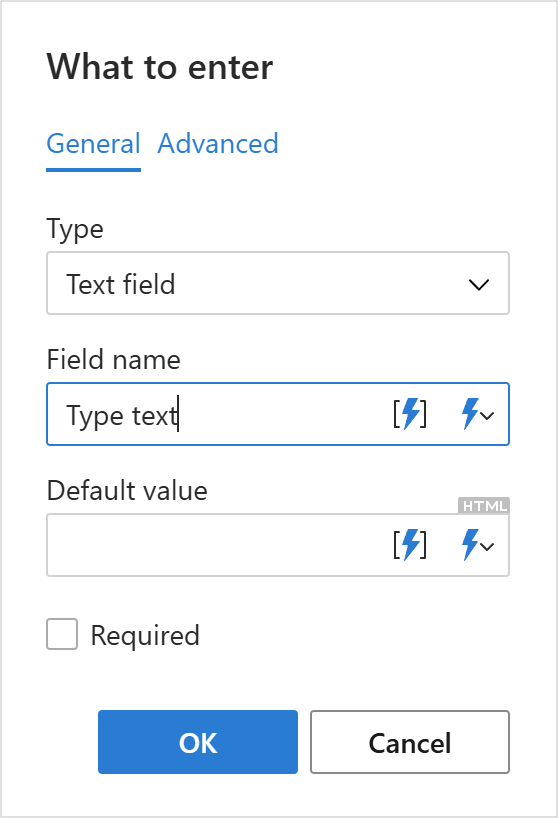
On the General tab, set Type to Text field.
- 4.
Set up the field:
- Field name: a label so you know what to type.
- Default value (optional): text filled in by default.
- Required: the template can’t be inserted until the field is filled.
- 5.
Click OK and save the template.
A placeholder appears in the template. When you insert it, a dialog asks for the text and puts it into the email.