
Personal signatures
Create personal Gmail signatures in Shared Email Templates: keep several, set defaults, and start from 14 ready-made layouts, themes or HTML templates.
Create signatures for yourself, a team or the whole company, and choose which one goes into new emails, replies and forwards.
Before you start
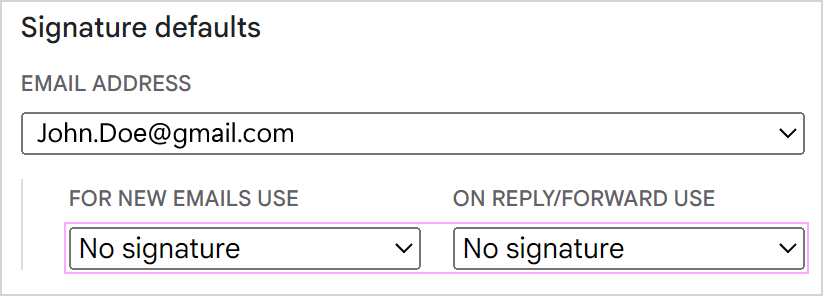
Turn off Gmail’s own automatic signature so the two don’t clash:
- 1.
In Gmail, open Settings › See all settings.
- 2.
On the General tab, scroll to Signature.
- 3.
Choose No signature for both new emails and replies/forwards.
Your signatures
Keep several signatures, set defaults and decide when each one is added.
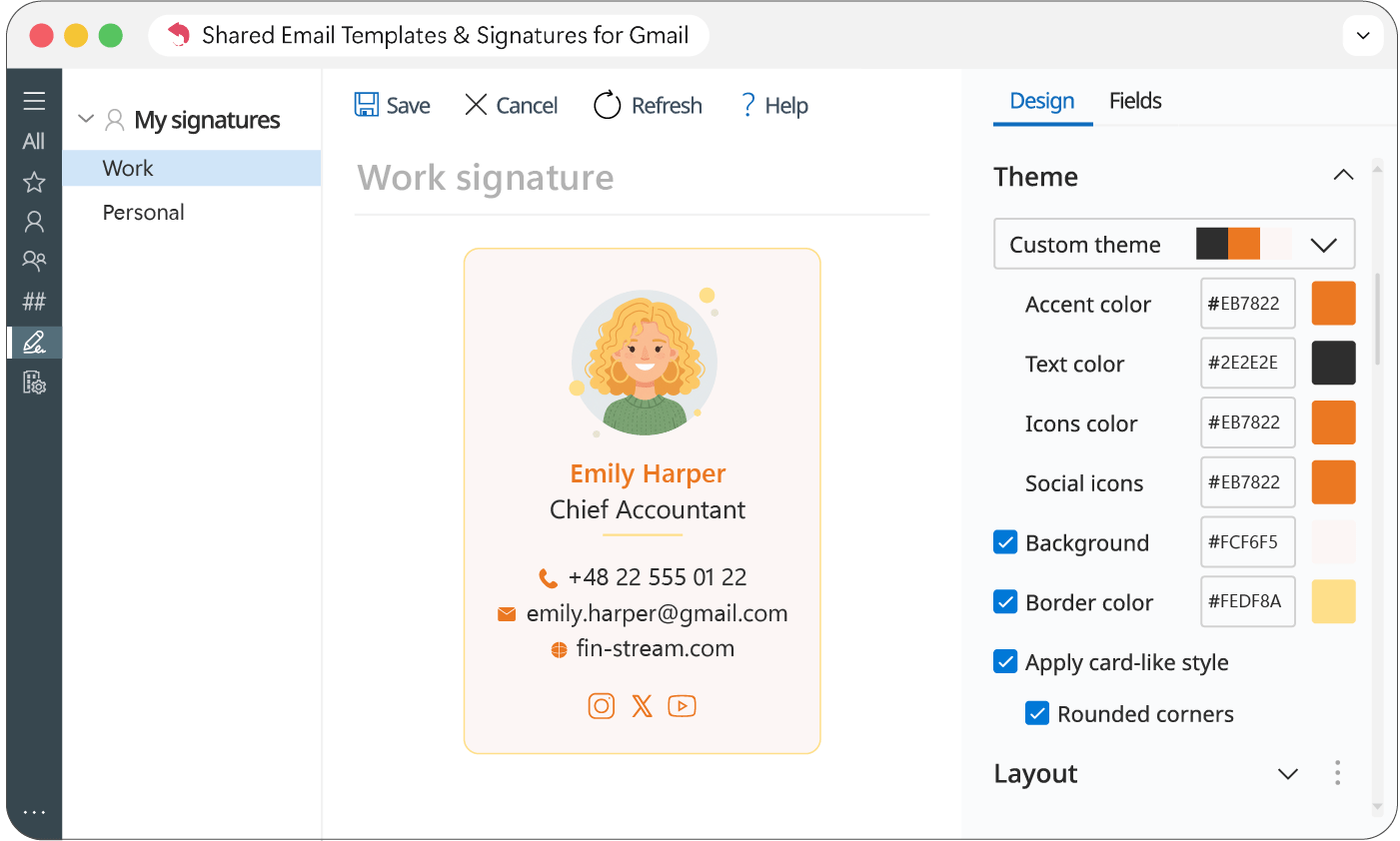
- 14 ready-made layouts to start from
- Color themes, fonts and sizes, including a custom theme
- A card-style look and optional underlined links
- Sections for general info, contact details, social profiles and extras such as banners or disclaimers
- HTML templates for full design control
Note
The Gmail version doesn’t support Azure AD integration.