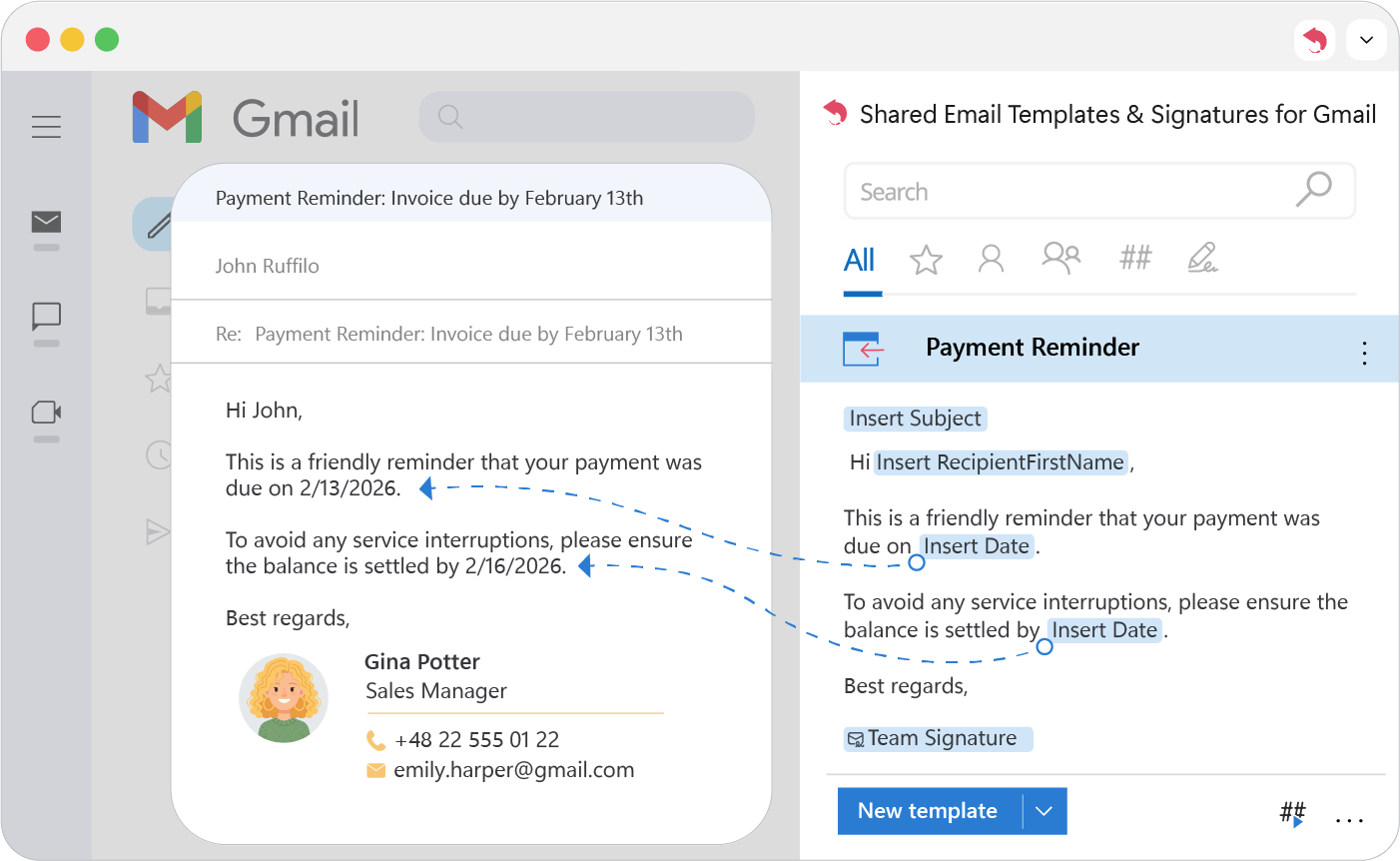
Insert the date
Add today’s date to a Gmail template automatically, in the format and language you choose, or shift it forward or back by days, months or years.
Insert today’s date
- 1.
Place the cursor where the date should go.
- 2.
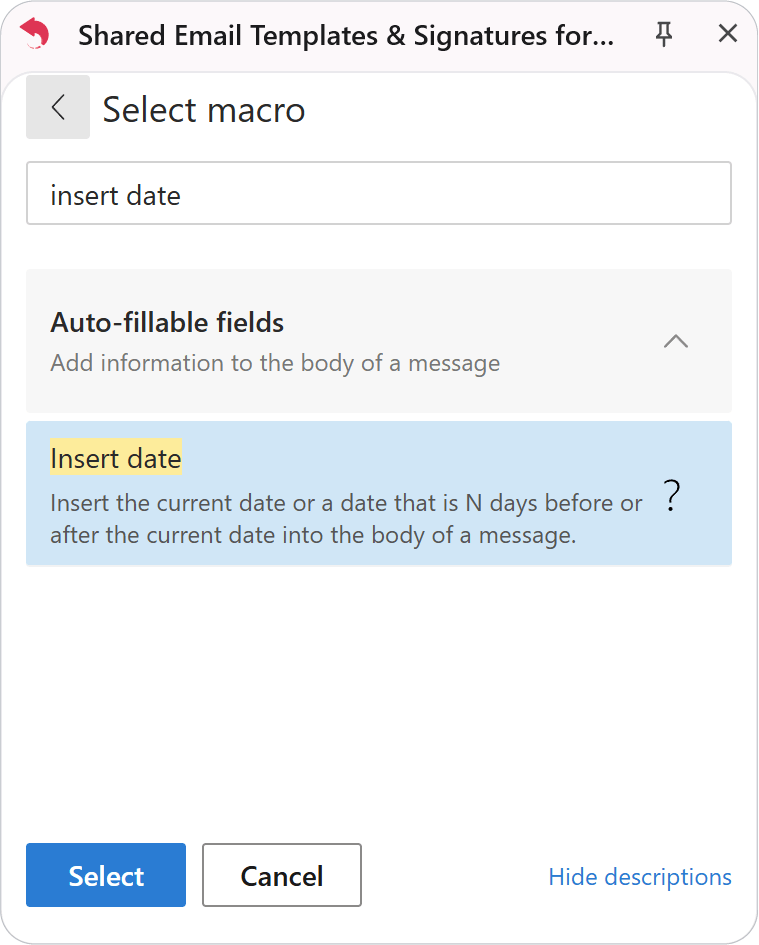
Click Insert macro and choose Insert date.
- 3.
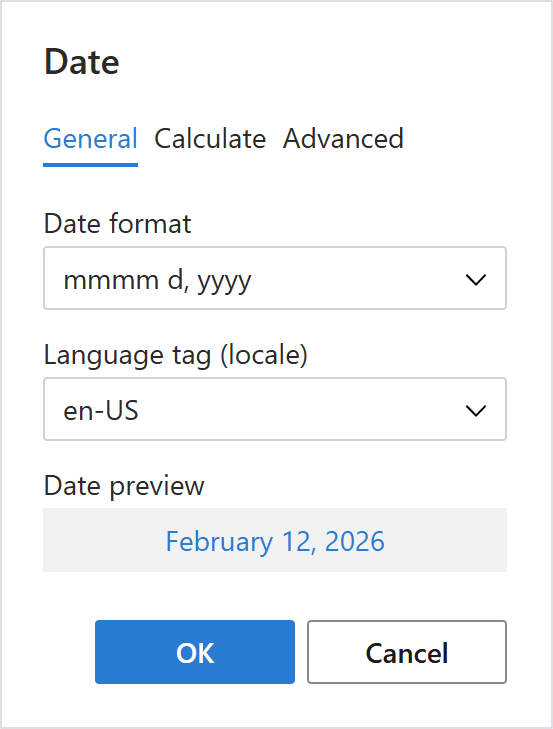
On the General tab, pick the date format and language.
- 4.
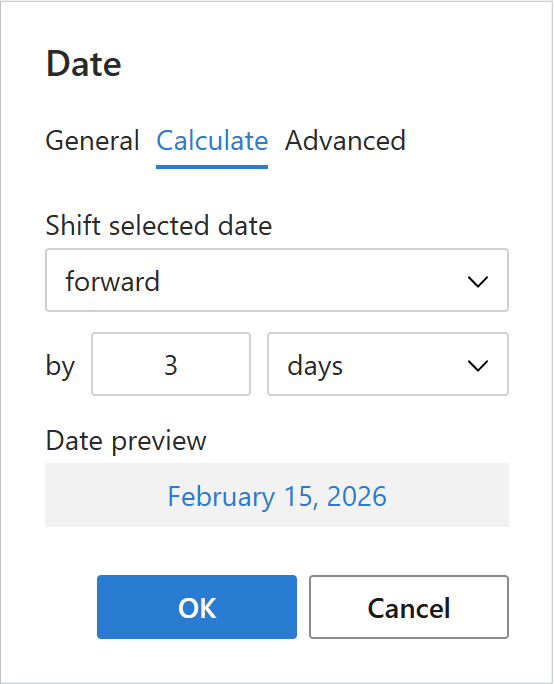
(Optional) On the Calculate tab, move the date forward or back.
- 5.
Click OK and save the template.
The correct date is filled in each time you use the template.