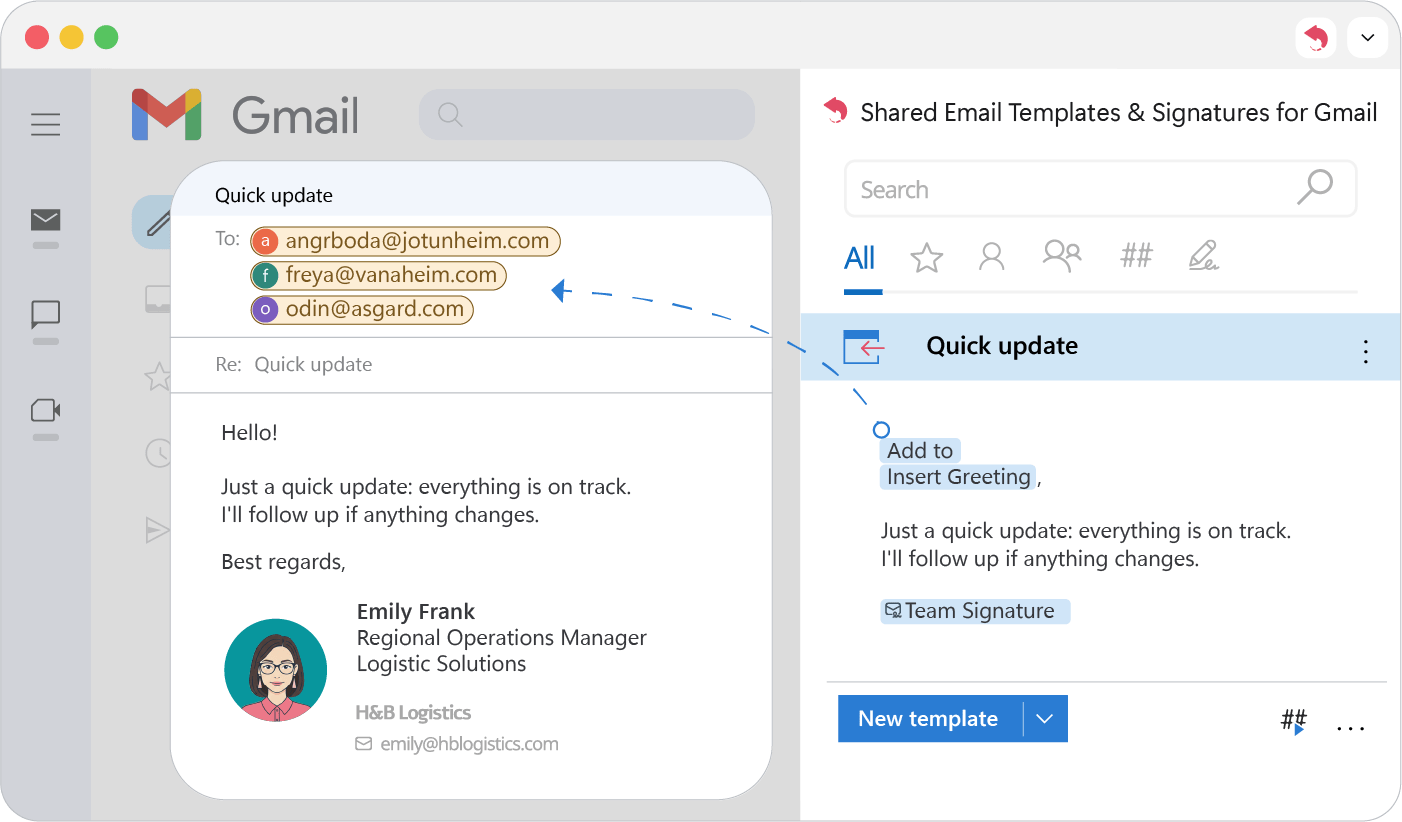
Fill To, Cc, and Bcc
Give a Gmail template fixed recipients: replace To, Cc and Bcc with message fields or the Fill macro, or add addresses and keep the existing ones.
Replace recipients with message fields
The quickest way to give a template fixed recipients.
- 1.
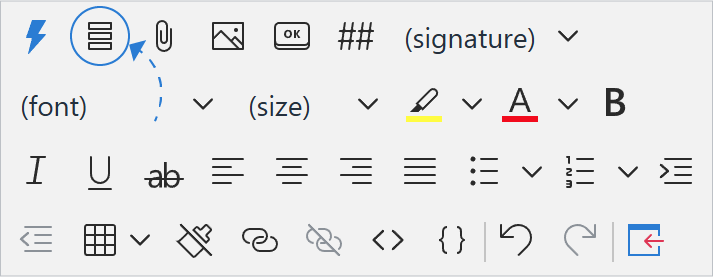
In the template editor, click Message fields.
- 2.
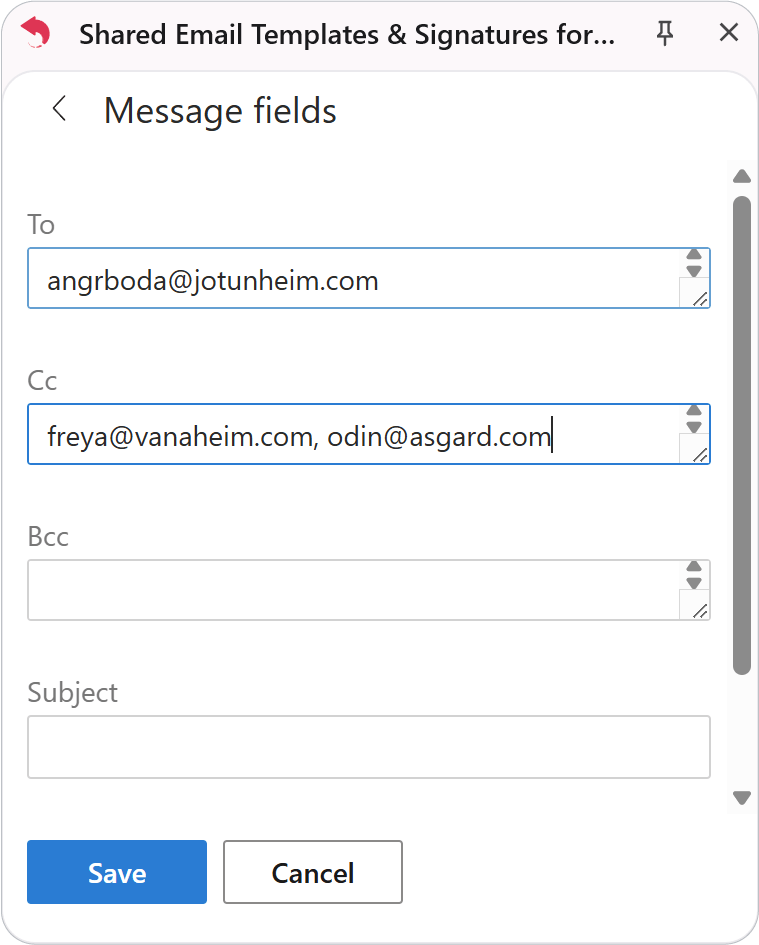
Enter addresses in To, Cc or Bcc, separated by commas or semicolons.
- 3.
Save the template.
Replace recipients with the Fill macro
Handy when you want to combine it with other macros.
- 1.
Place the cursor anywhere in the template.
- 2.
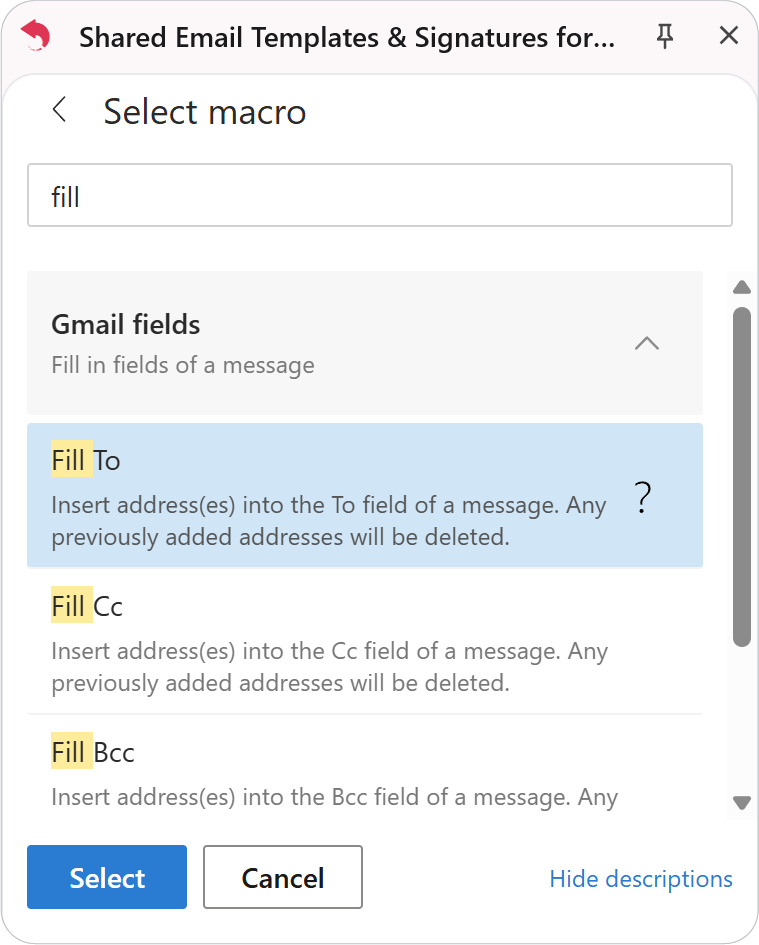
Click Insert macro and search for “Fill”.
- 3.
Choose Fill To, Fill Cc or Fill Bcc.
- 4.
Enter the addresses and click OK.
- 5.
Save the template.
Note
Unlike Add to, these options clear the field first and then insert your addresses.
Add recipients and keep the existing ones
- 1.
Click Insert macro.
- 2.
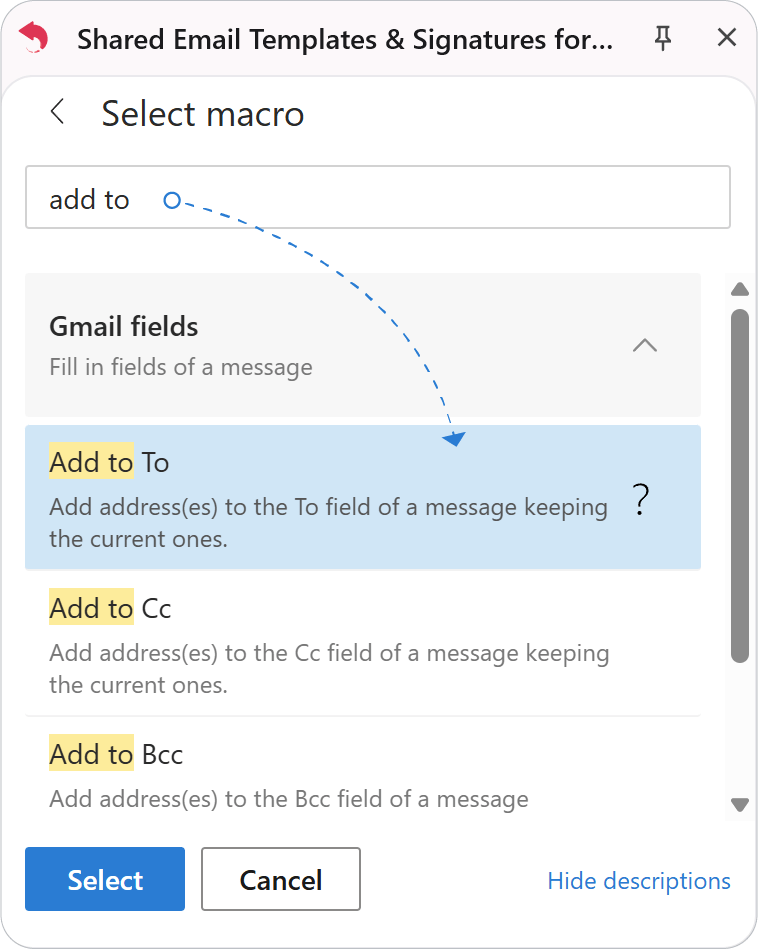
Type “Add to” and choose Add to To, Add to Cc or Add to Bcc.
- 3.
Enter the addresses, separated by commas or semicolons, and click OK.
- 4.
Save the template.
The addresses are added when you insert the template, and existing recipients stay.