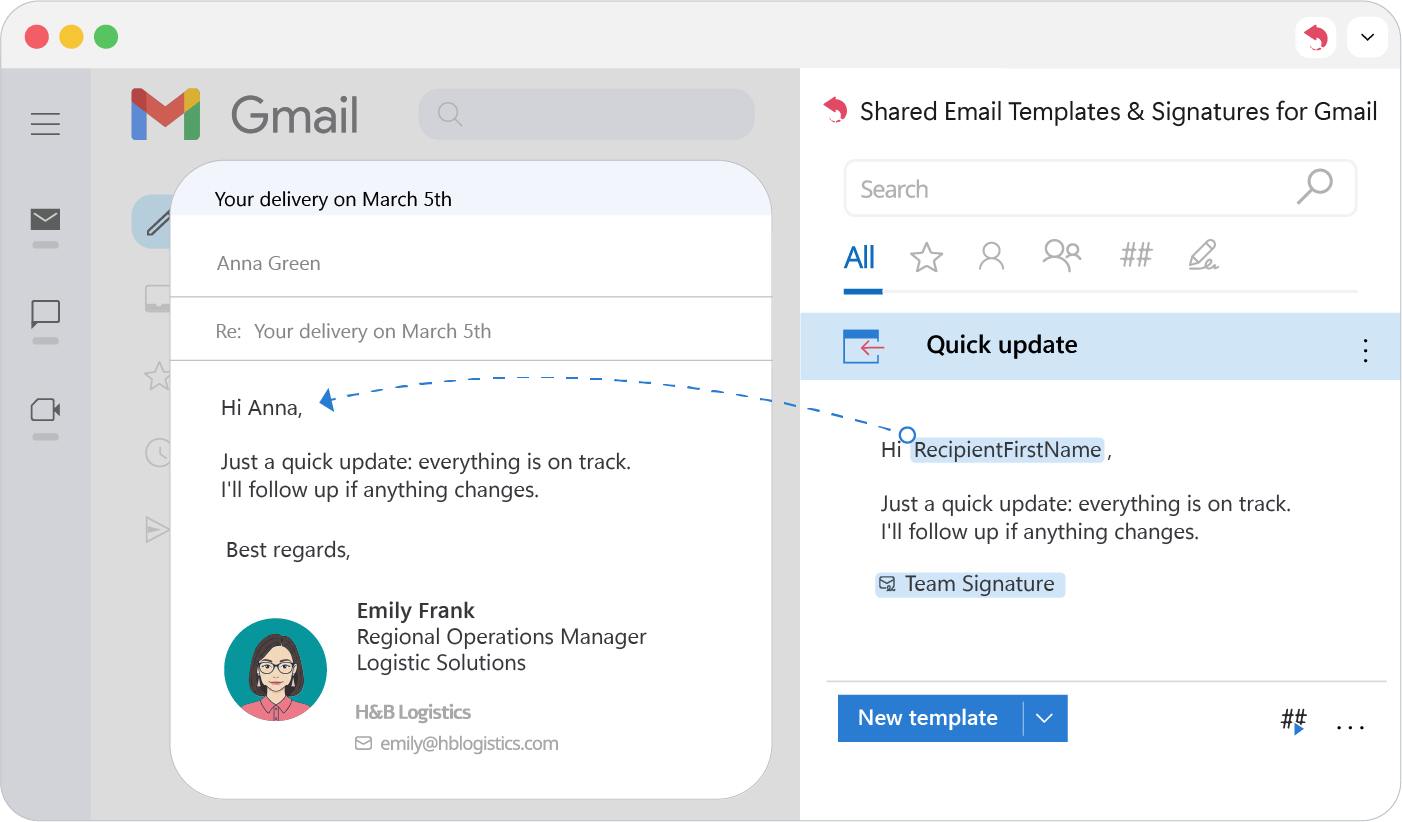
Greetings and names
Greet recipients by name and switch between a single and a group greeting automatically when you insert a Shared Email Templates for Gmail template.
Adjust the greeting to the number of recipients
- 1.
Place the cursor where the greeting should go.
- 2.
Click Insert macro and choose Insert greeting.
- 3.
Enter a greeting for one recipient and one for several.
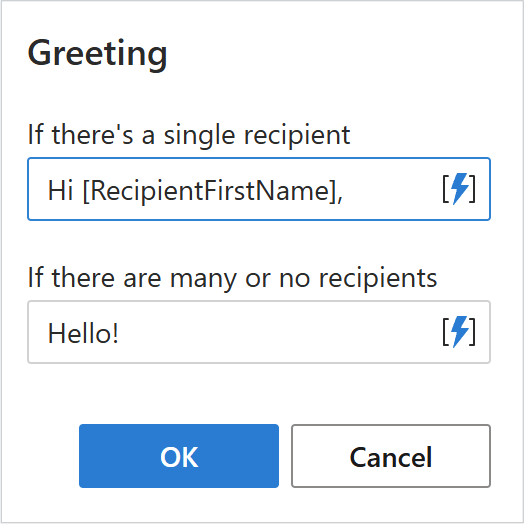
- 4.
Click OK and save the template.
Tip
These fields accept nested macros too.
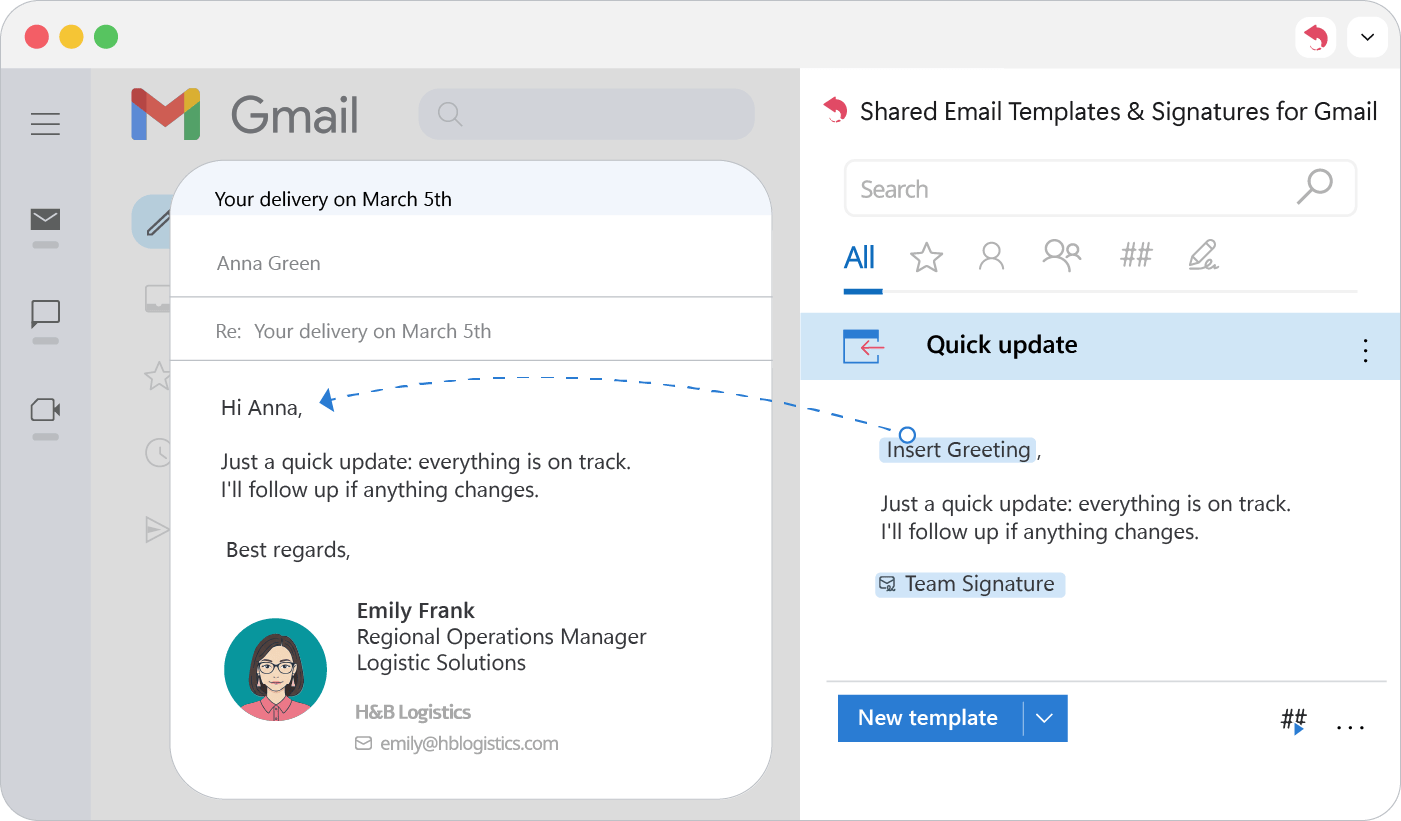
With one recipient, the first greeting is used:
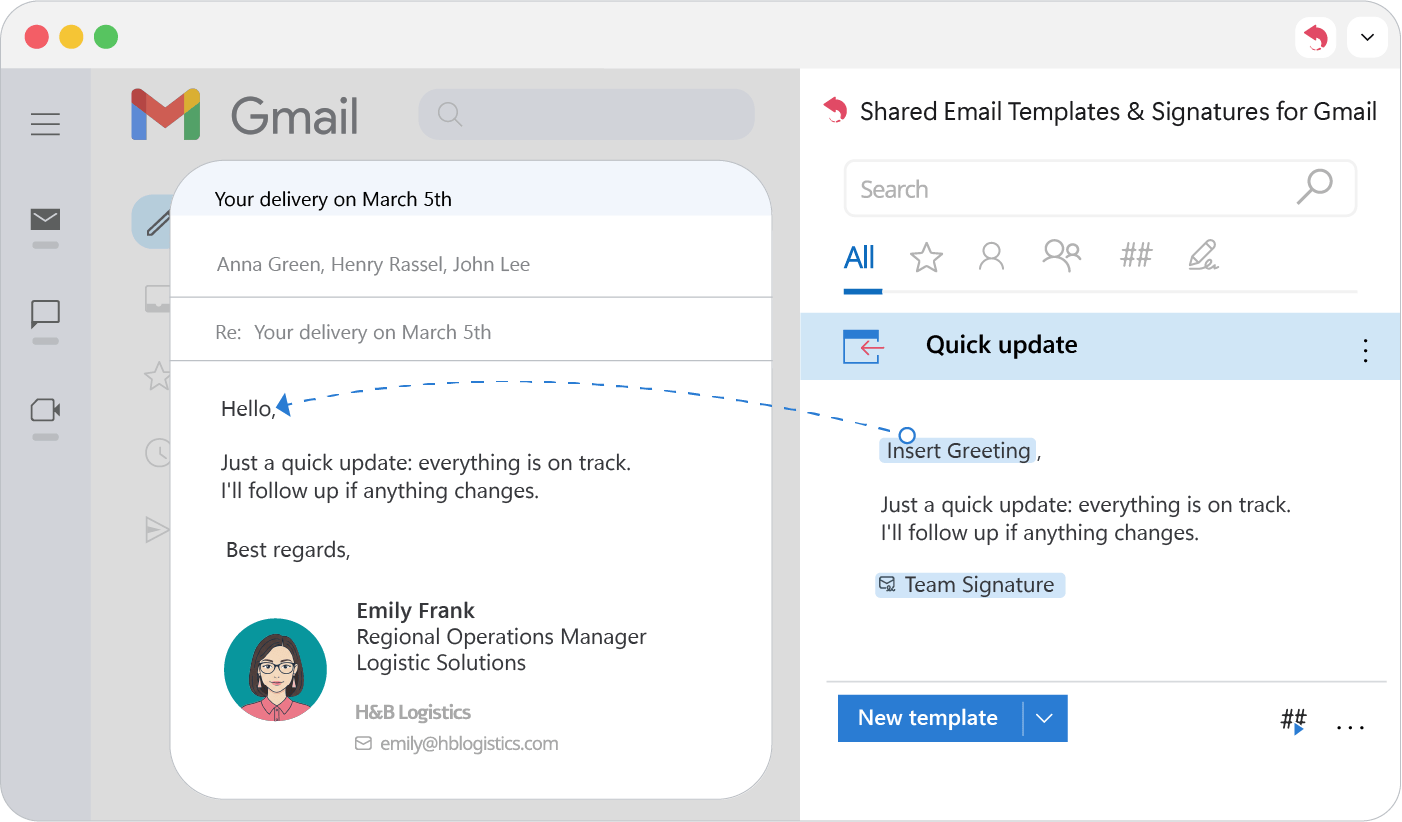
With several recipients, the group greeting is used:
Insert the recipient’s name
- 1.
Place the cursor where the name should go.
- 2.
Click Insert macro.
- 3.
Search for “recipient” and choose the first, last or full name.
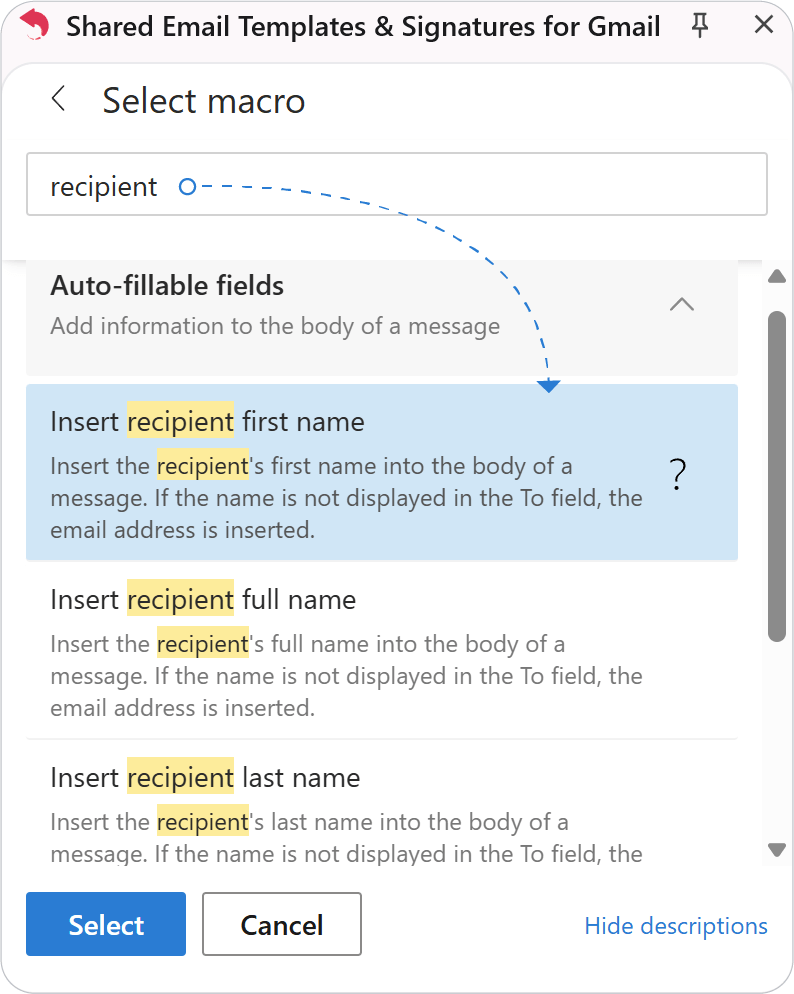
- 4.
Save the template.
When you insert the template, the name is taken from the recipient’s details.