
Links
Add a link to a Google Drive file in a Shared Email Templates for Gmail template to keep large documents out of the email, and share the file.
Link to a Google Drive file
Linking to a file keeps large documents out of the email.
- 1.
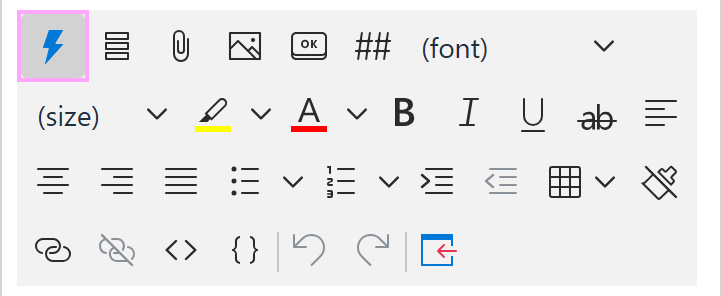
Click Insert macro.
- 2.
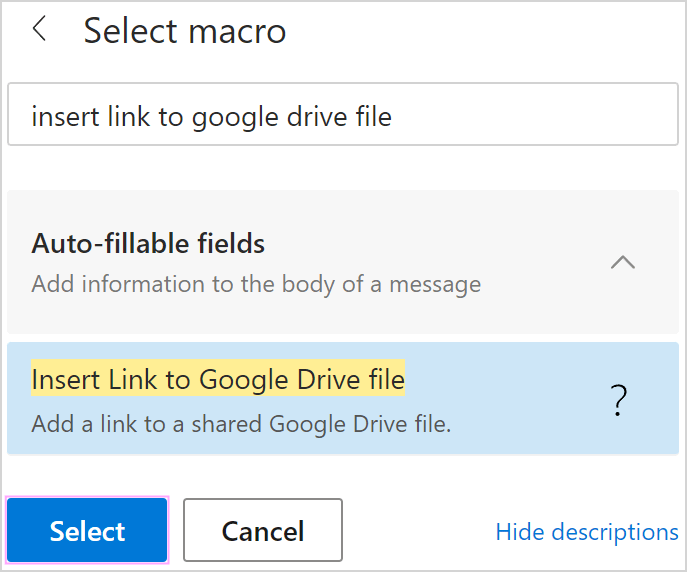
Choose Insert Link to Google Drive file.
- 3.
Allow access to your files if asked.
- 4.
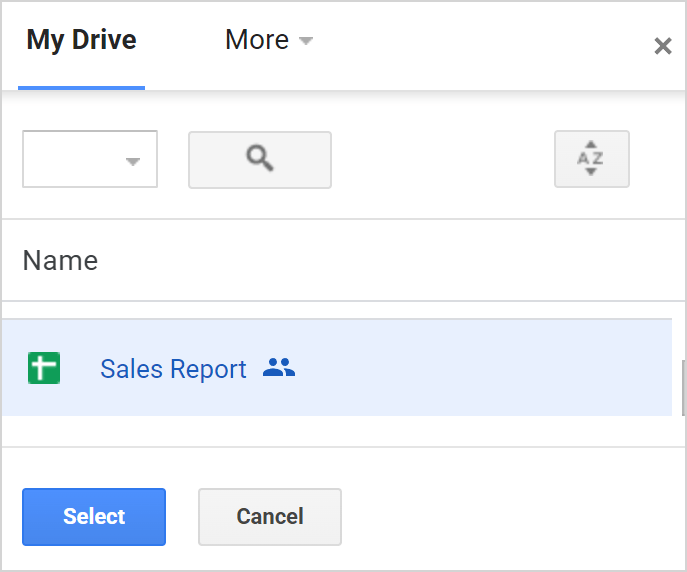
Pick the file.
- 5.
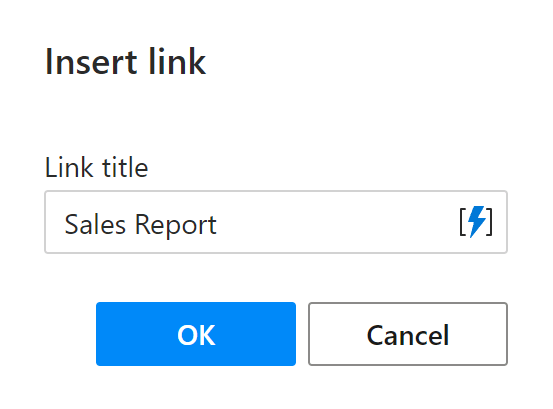
Edit the link text and title, then click OK.
Note
A link doesn’t grant access by itself. Set the file to “Anyone with the link” or share it with your team.