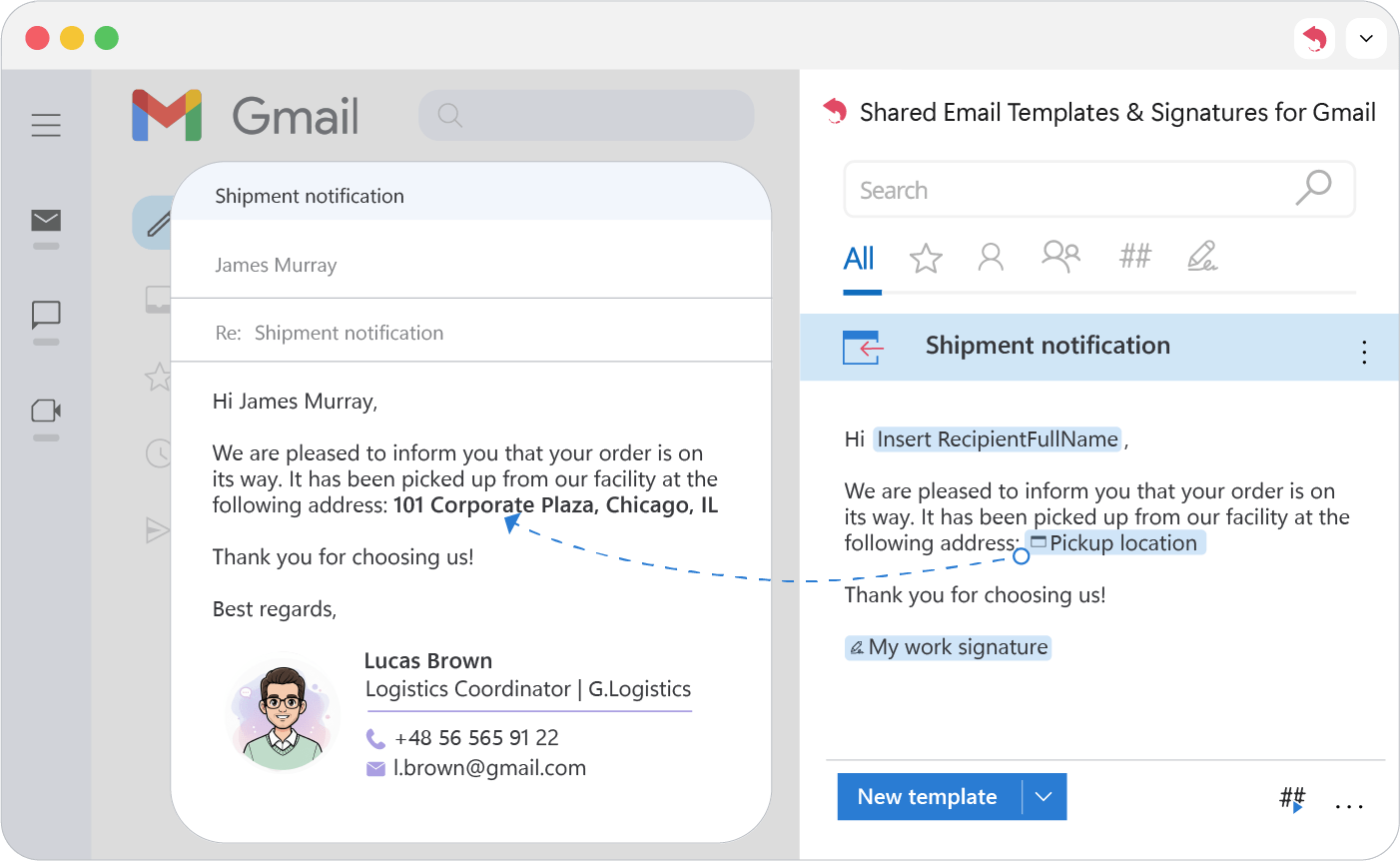
Drop-down list
Add a drop-down list to a Gmail template, so you pick one or several preset options each time you insert it.
- 1.
Place the cursor where the selection should go.
- 2.
Click Insert macro and choose What to enter (WTE).
- 3.
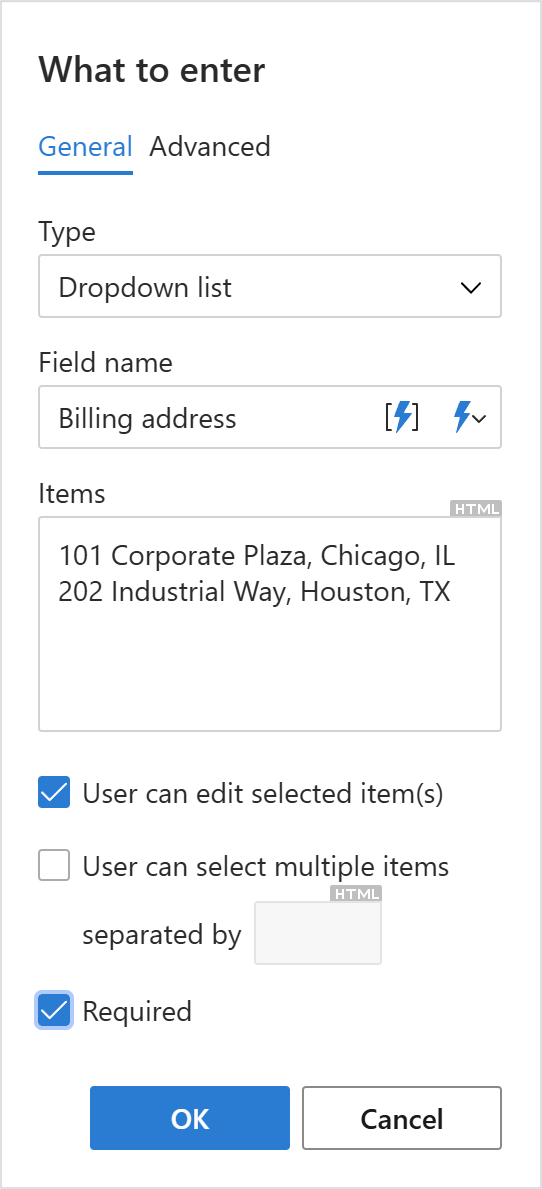
On the General tab, set Type to Dropdown list.
- 4.
Set up the list:
- Field name: a label for the list.
- Items: one option per line.
- User can edit selected item(s): lets you adjust the choice before it’s inserted.
- User can select multiple items separated by: allows picking several options.
- Required: a selection must be made before inserting.
- 5.
Click OK and save the template.
When you use the template, a dialog shows the list:
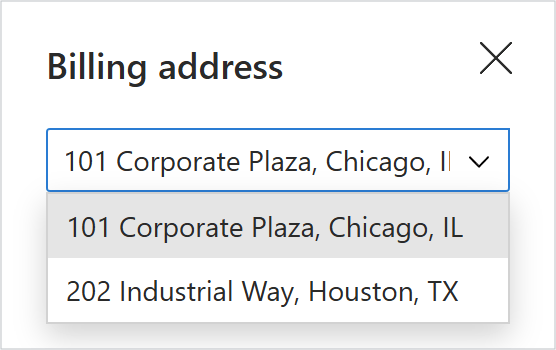
Your choice goes straight into the message.