Install from Chrome Web Store
Add Shared Email Templates for Gmail to Chrome from the Chrome Web Store, then open its pane in Gmail with one click on the extension icon.
Requirements
Before installing, make sure your browser and account meet the requirements.
Install Shared Email Templates for Gmail
Step 1: Find the extension in Chrome Web Store
Open the extension page in the Chrome Web Store directly, or find it from Chrome:
- 1.
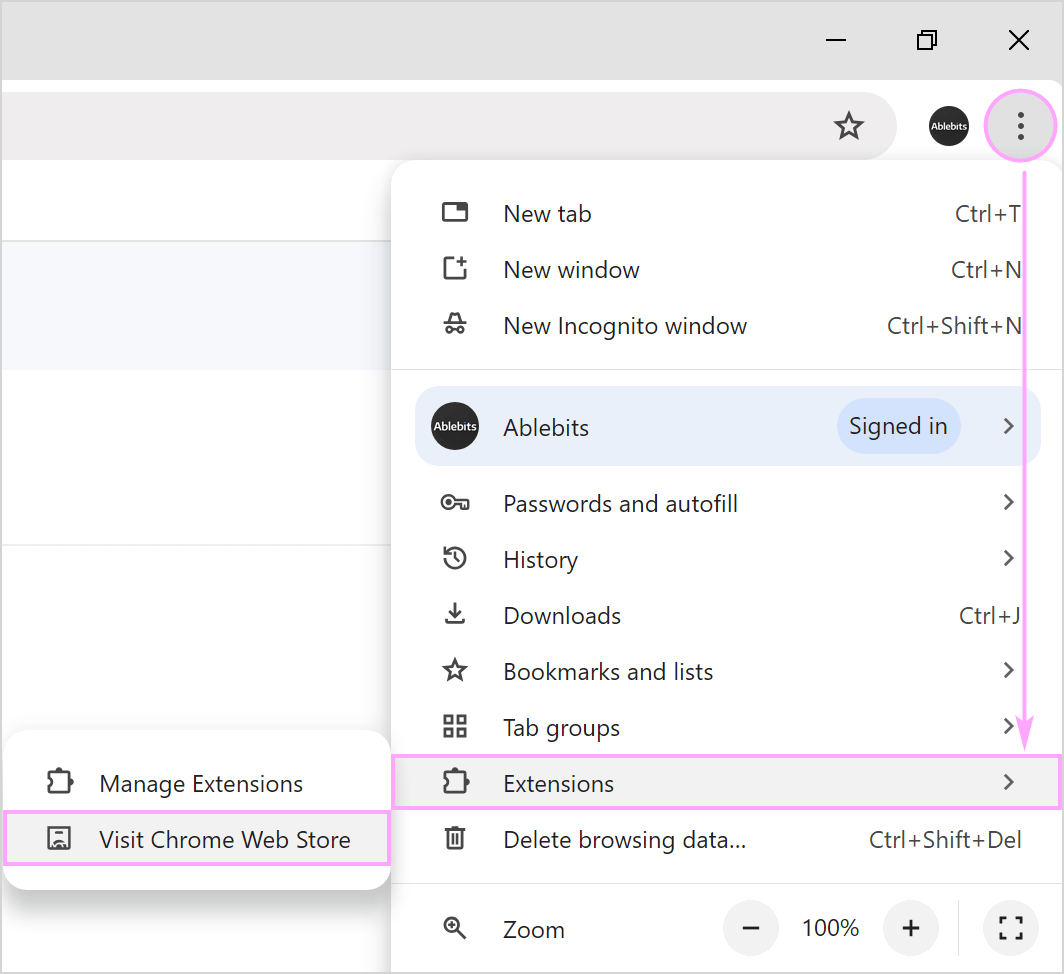
Click More (three dots) next to your profile picture, then Extensions › Visit Chrome Web Store.
- 2.
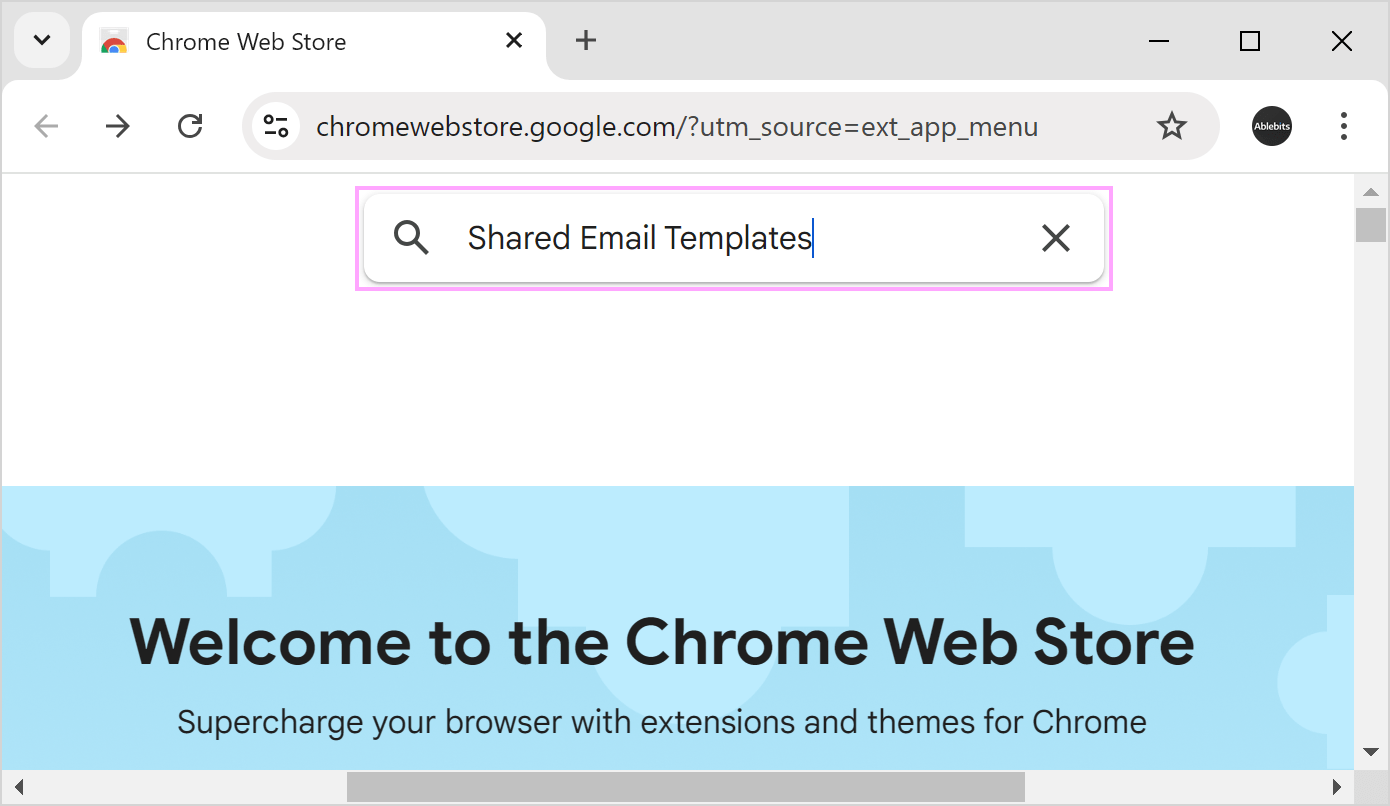
Type “Shared Email Templates” in the search field and press Enter.
- 3.
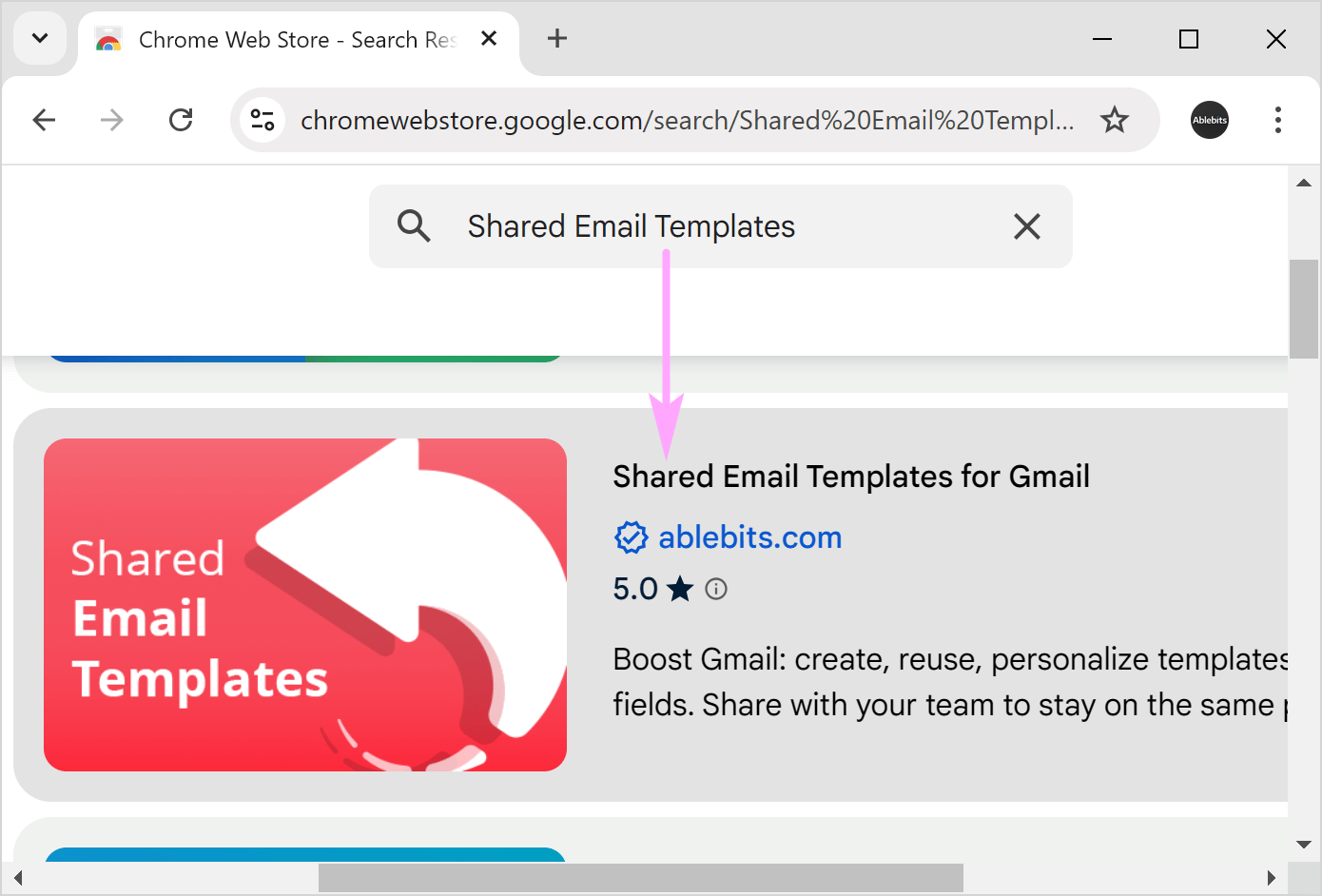
Click Shared Email Templates for Gmail by Ablebits.
Step 2: Add it to Chrome
- 1.
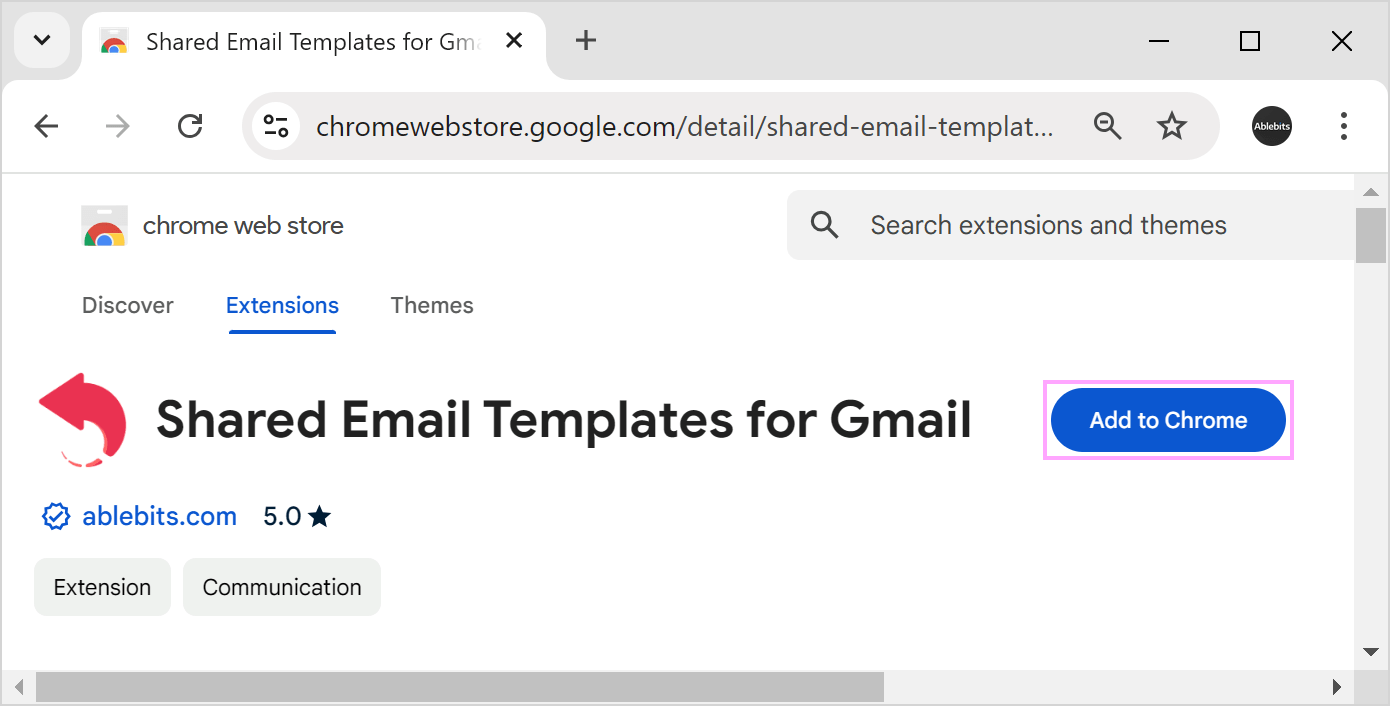
On the extension page, click Add to Chrome.
- 2.
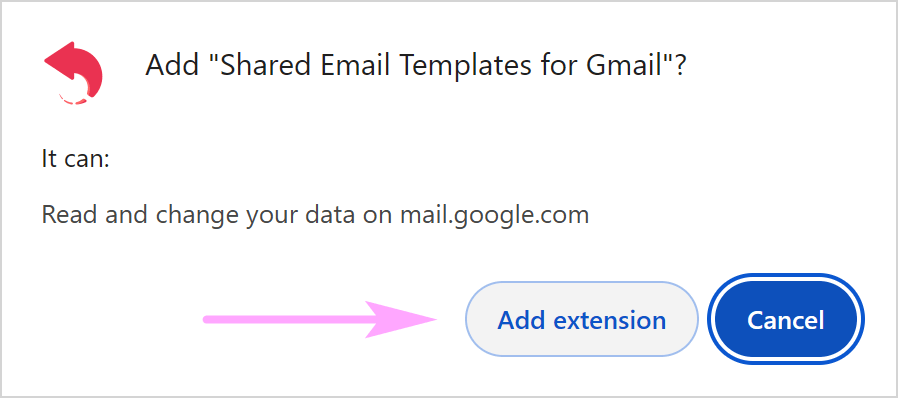
Confirm the permission request with Add extension.
Tip
The extension asks for more permissions only when a feature needs them. The Privacy policy explains each one.
Step 3: Run Shared Email Templates
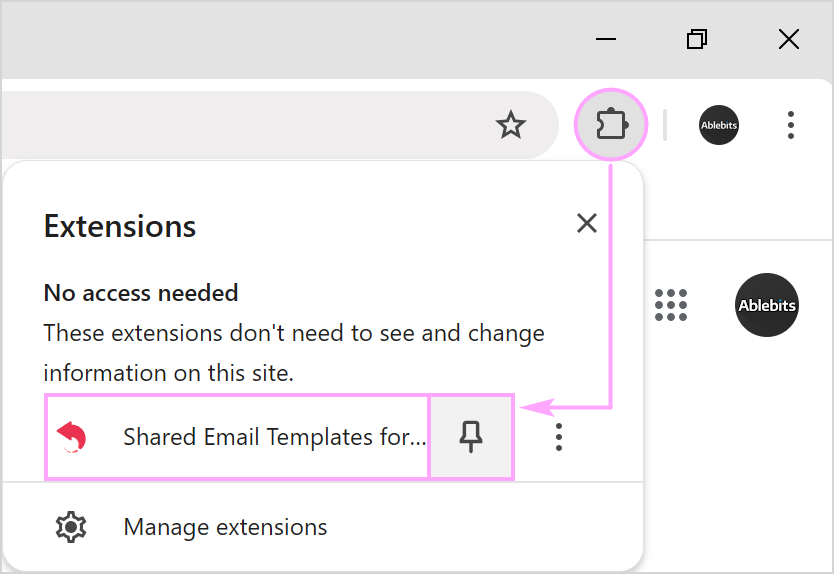
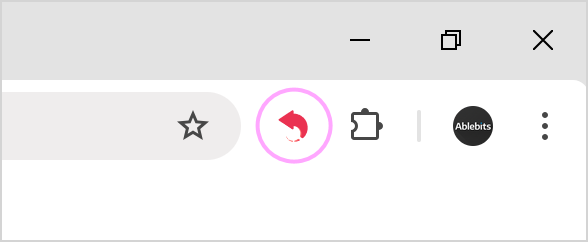
Click the extension icon to the right of the address bar. The pane opens on the side of Gmail.
Tip
Don’t see the icon? Click Extensions, find Shared Email Templates and click the pin to keep it next to the address bar.