Insert pictures
Insert a picture from Google Drive into a Shared Email Templates for Gmail template, and see the pictures instead of InsertPicture placeholders.
In the Gmail version, pictures for templates come from Google Drive.
Insert a picture from Google Drive
- 1.
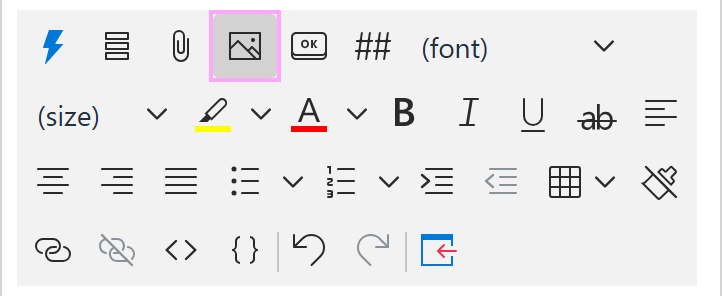
On the editor toolbar, click Insert picture.
- 2.
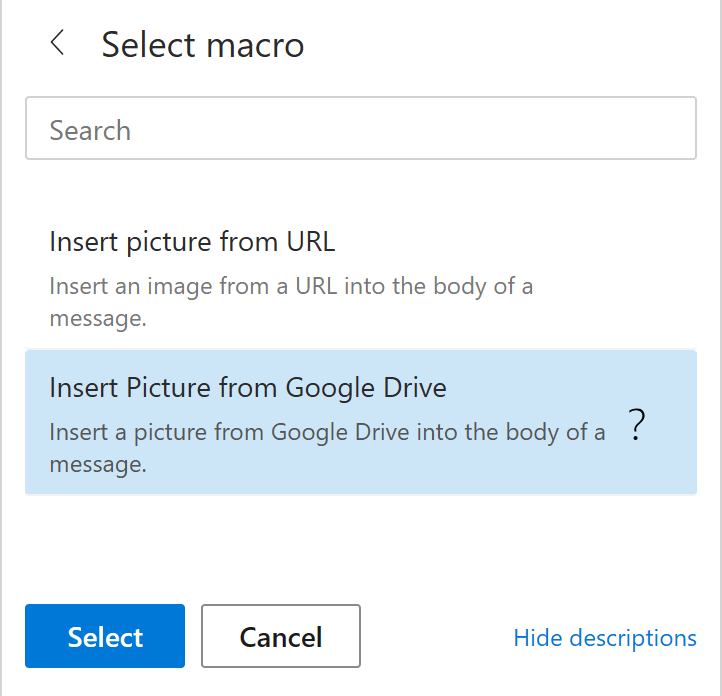
Choose Insert picture from Google Drive.
- 3.
Confirm your Google account if asked.
- 4.
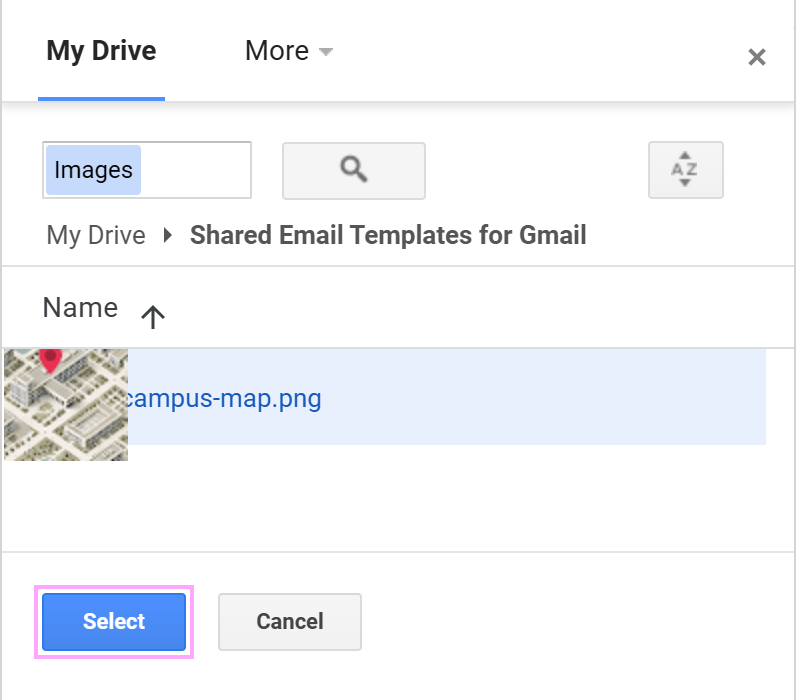
Pick the picture.
- 5.
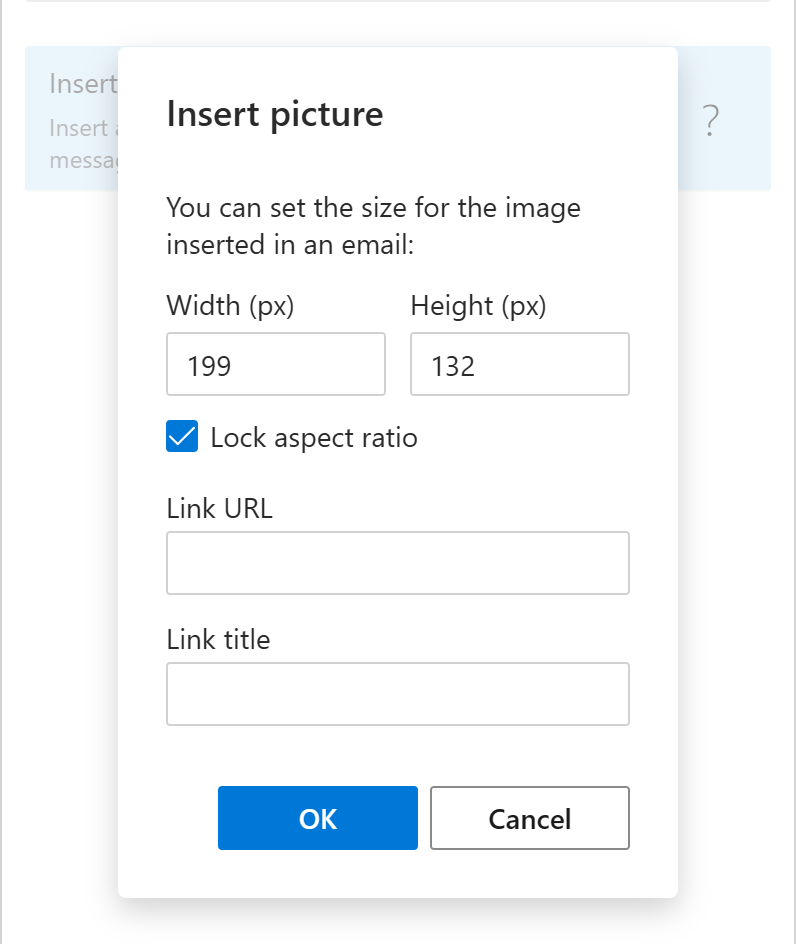
Set the size, and optionally a link and title, then click OK.
- 6.
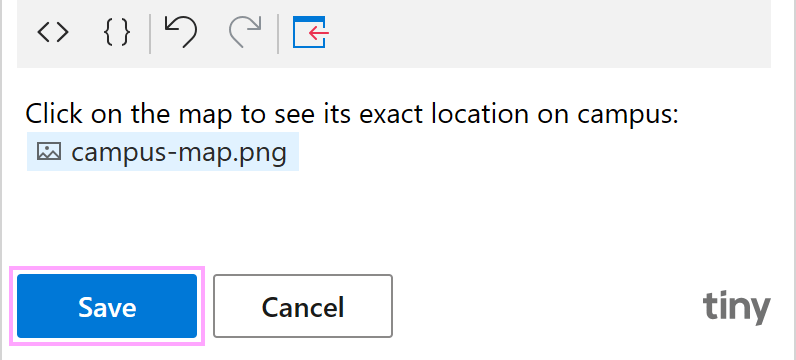
An InsertPicture placeholder appears in the template. Click Save.
Tip
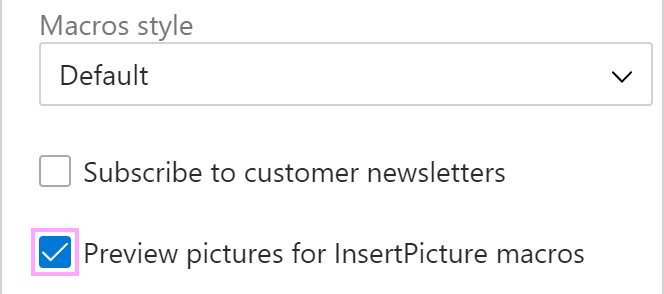
To see pictures instead of placeholders, go to Profile › Edit account and turn on Preview pictures for InsertPicture macros.