Activate and assign a subscription key
Learn how to add, assign, and manage Shared Email Templates subscription keys.
Use the guide below to register your keys and link them to specific Gmail users.
Note
To manage Shared Email Templates licenses for your team or organization, you must have admin rights.
Register your subscription key
- 1.
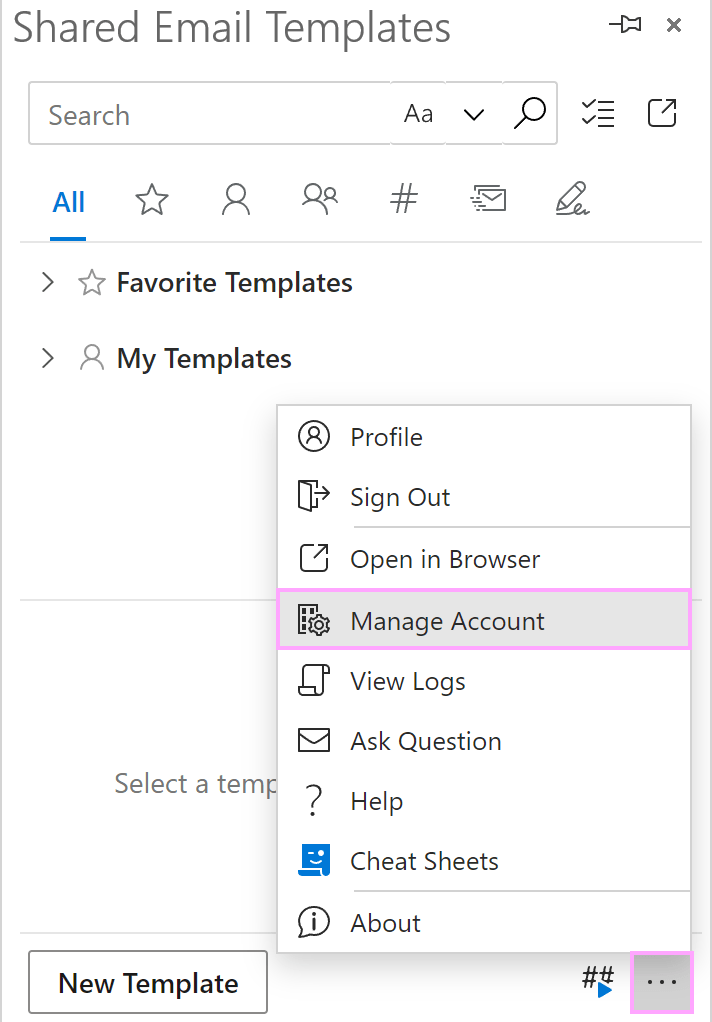
Inside the Gmail sidebar, click the More icon (three dots) and select Company account (Manage account in older versions of the app).
- 2.
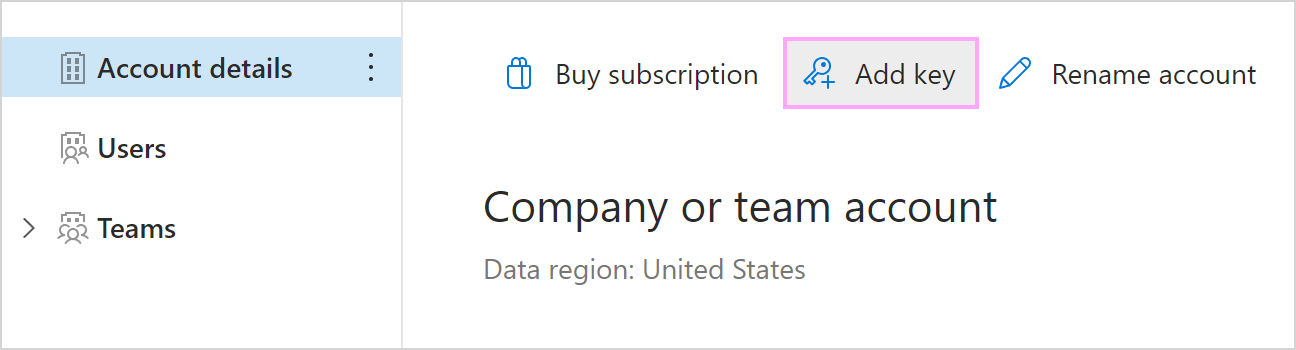
Once the app opens in your default browser, click Add key.
- 3.
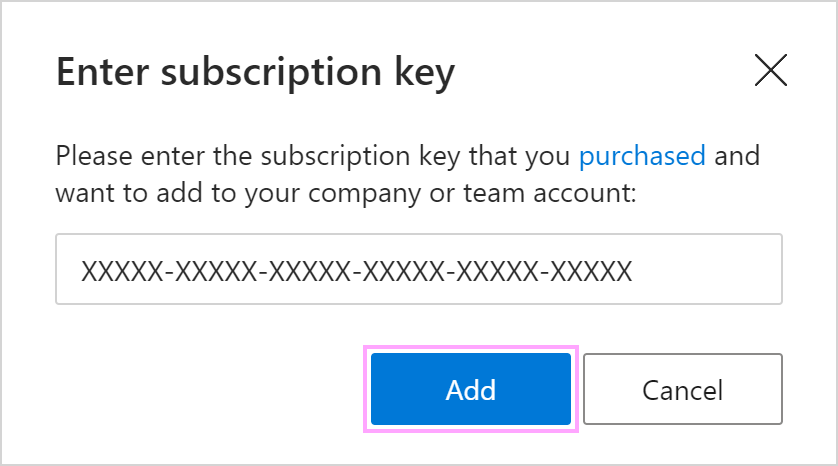
Enter your subscription key in the pop-up and then click Add.
Assign licenses to team members
- 1.
In the Shared Email Templates & Signatures app in your browser, navigate to Company account > Users.
- 2.
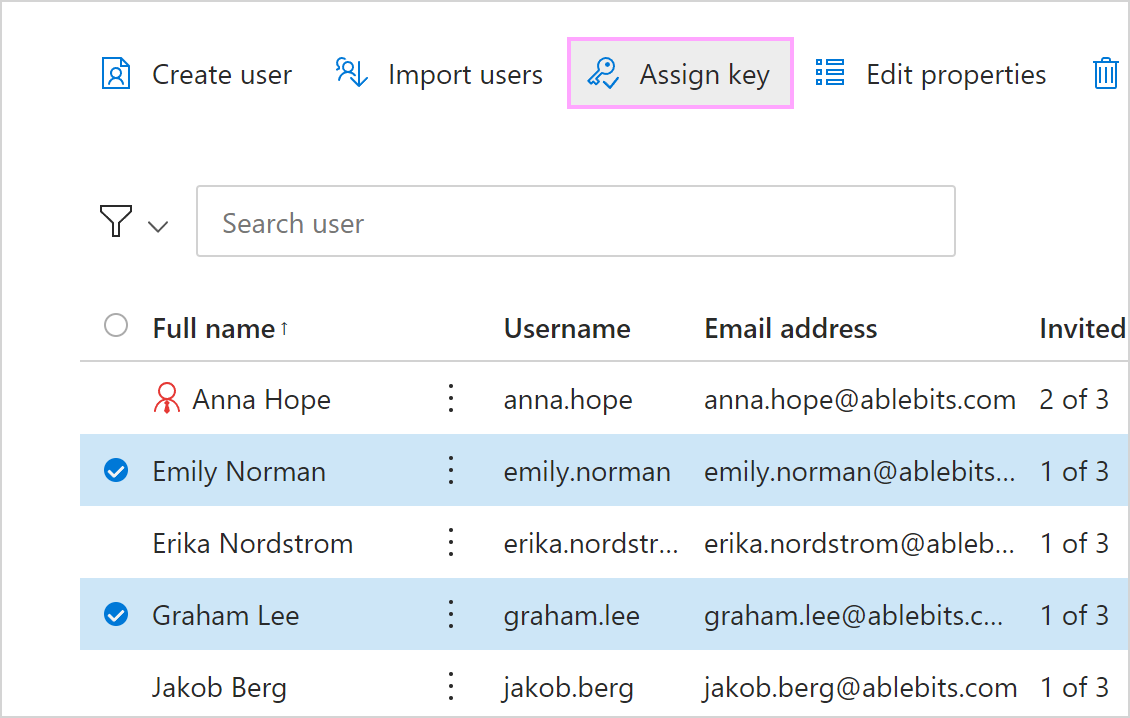
Mark the checkboxes next to the teammates who need access.
- 3.
Click Assign key button.
- 4.
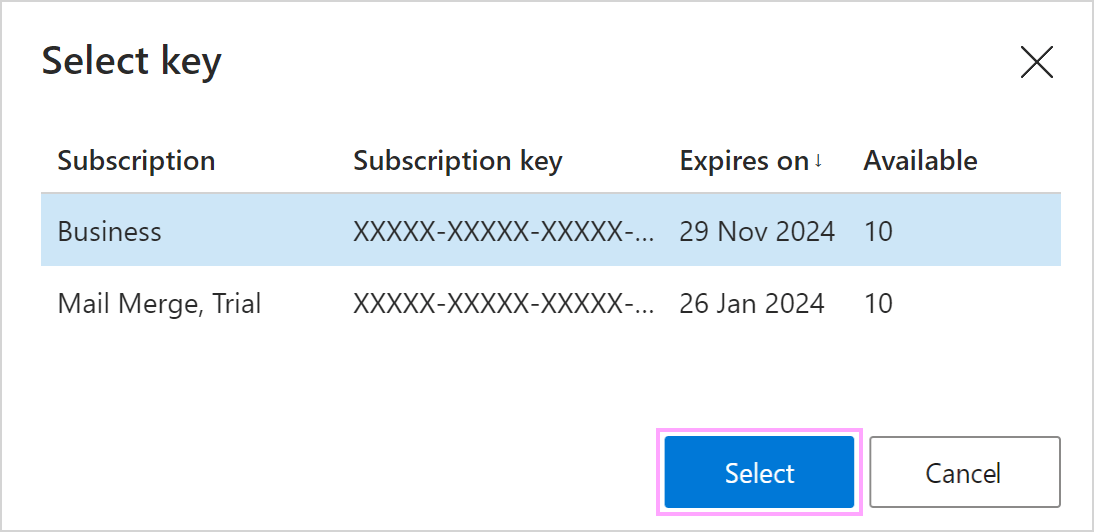
In the Select key dialog, pick the key to assign.
Bulk assignment for large teams
- 1.
In the Shared Email Templates & Signatures app in your browser, go to Company account > Users.
- 2.
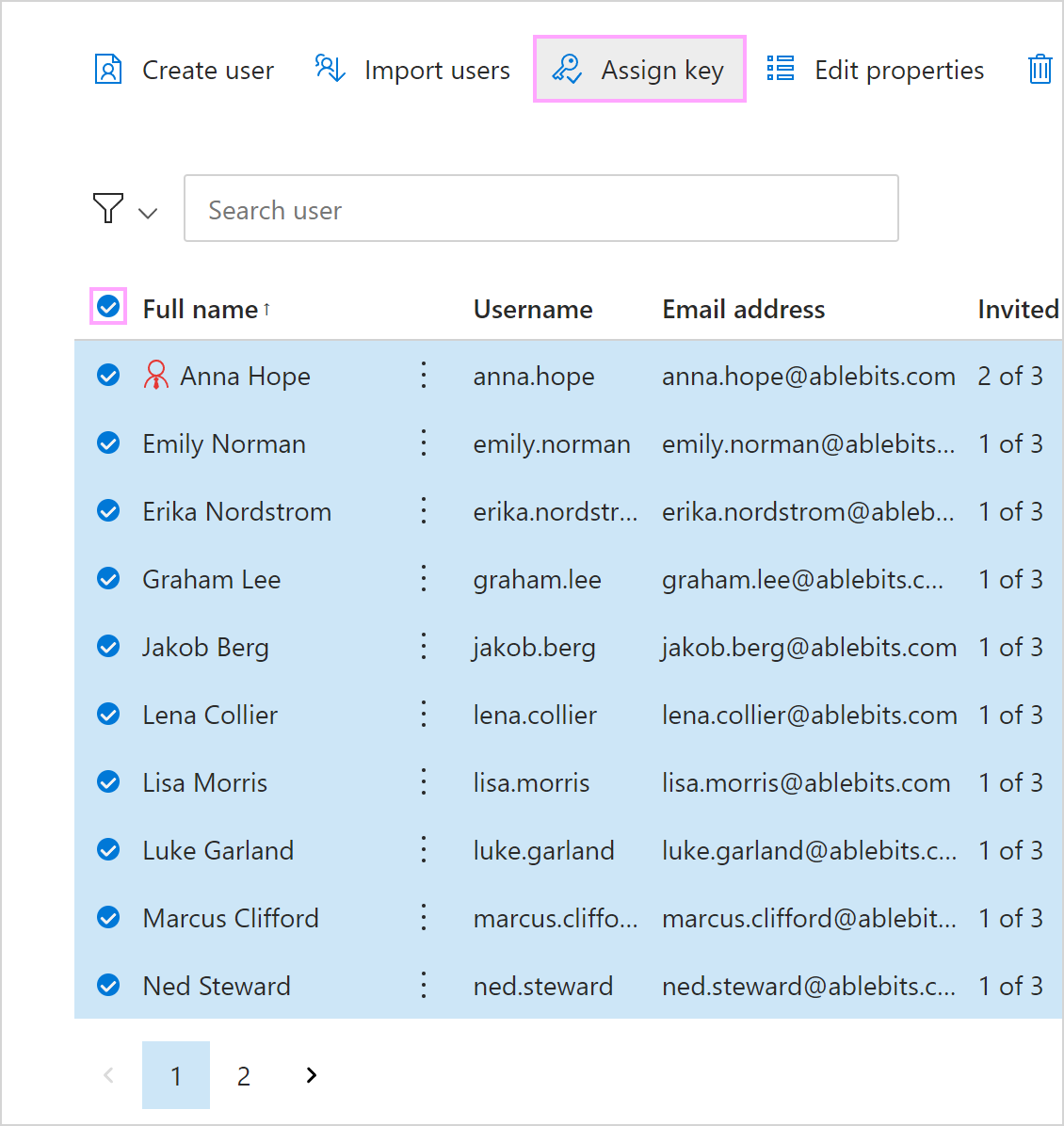
Select all users on the current page and hit Assign key.
Tip
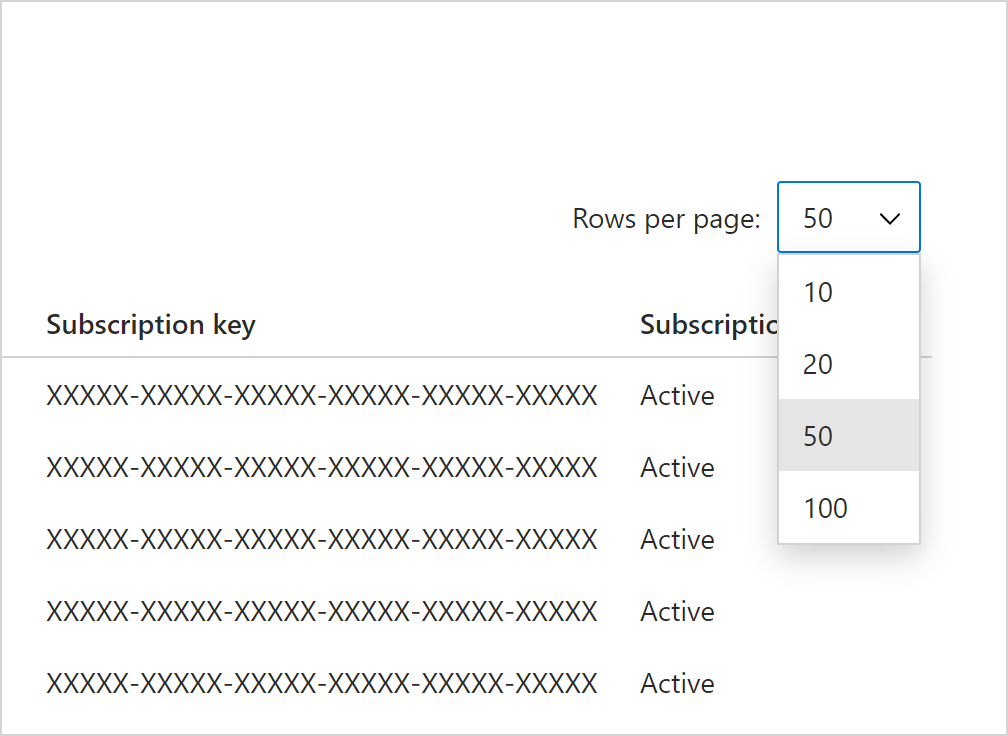
You can adjust the number of rows displayed per page to process more users at once.
- 3.
In the Select key dialog, select the key that you want to assign.
- 4.
Repeat these steps on the next page.
Note
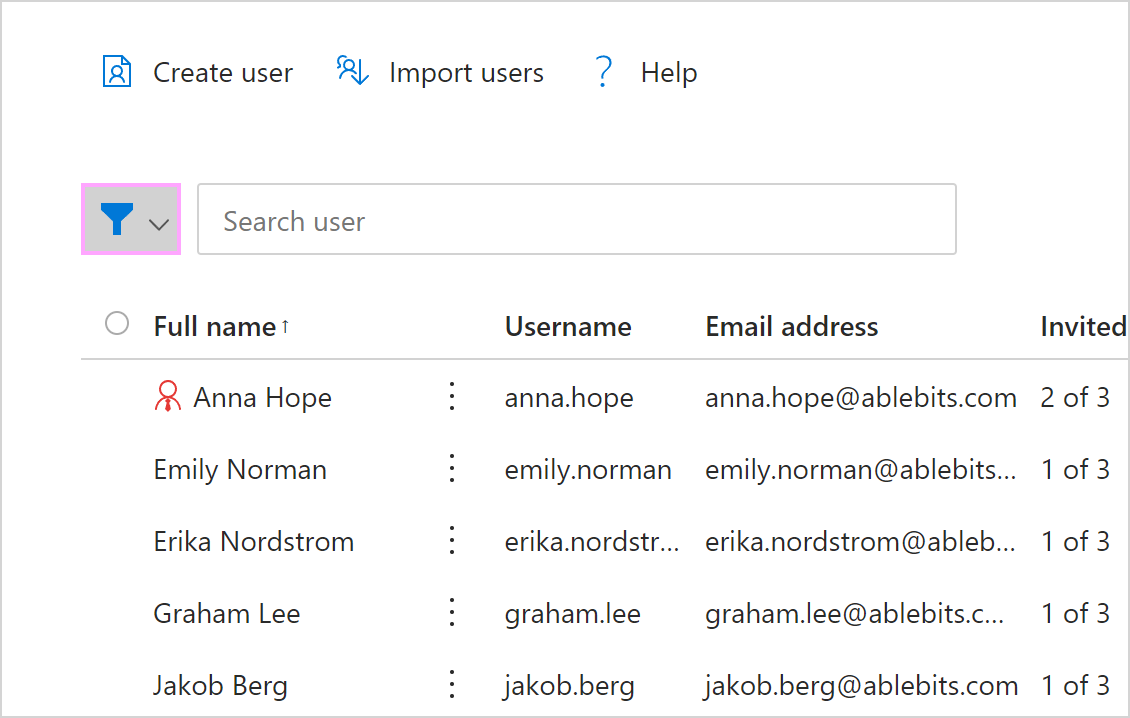
Use the Filter tool if you need to find users with specific attributes or those who haven’t been assigned a key yet.
Revoking a subscription key
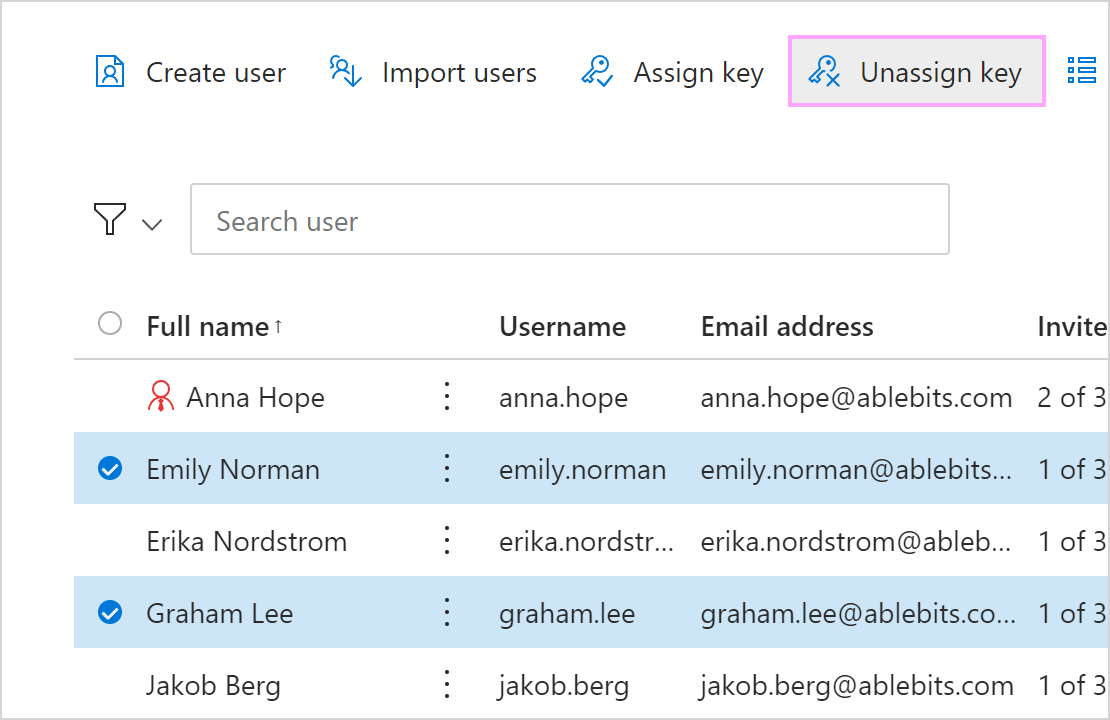
In the Shared Email Templates & Signatures app in your browser, go to Manage account > Users, select a user or users, and then click Unassign key.