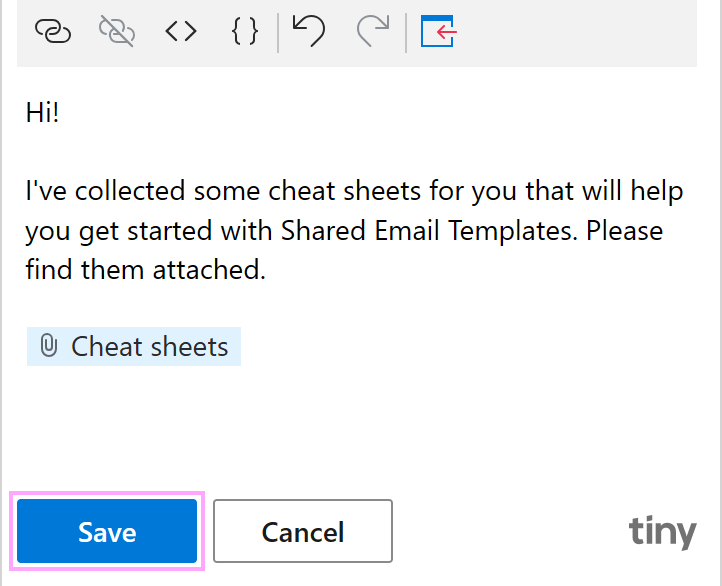
Attach files
Attach a Google Drive file to a Shared Email Templates for Gmail template, or attach all files from a Drive folder with the Attach macro.
The Gmail version uses Google Drive for attachments, pictures and links, where the Outlook version uses OneDrive or SharePoint.
Before you start
- The Message attachments button and the Attach macro are separate: files added by the macro don’t appear in the dialog.
- Very large files, or many of them, may hit size limits.
- In shared templates, teammates need access to the Drive files. A shared folder for template files is the easiest way.
- The first time a template attaches a Drive file, you’ll be asked to sign in to Google.
Attach a file from Google Drive
- 1.
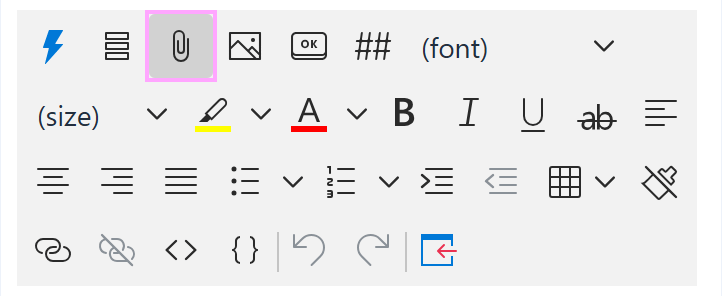
In the template editor, click Message attachments.
- 2.
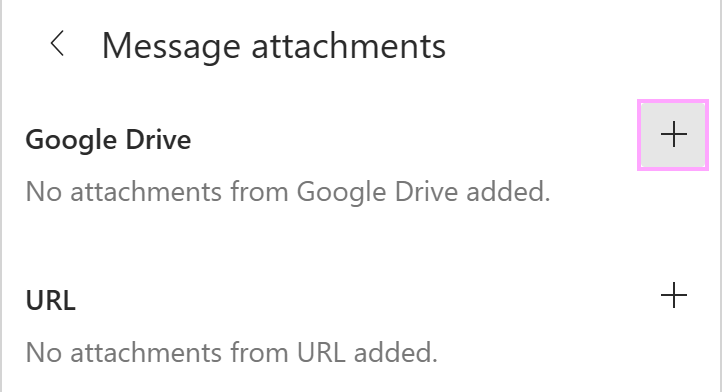
Click the plus sign next to Google Drive.
- 3.
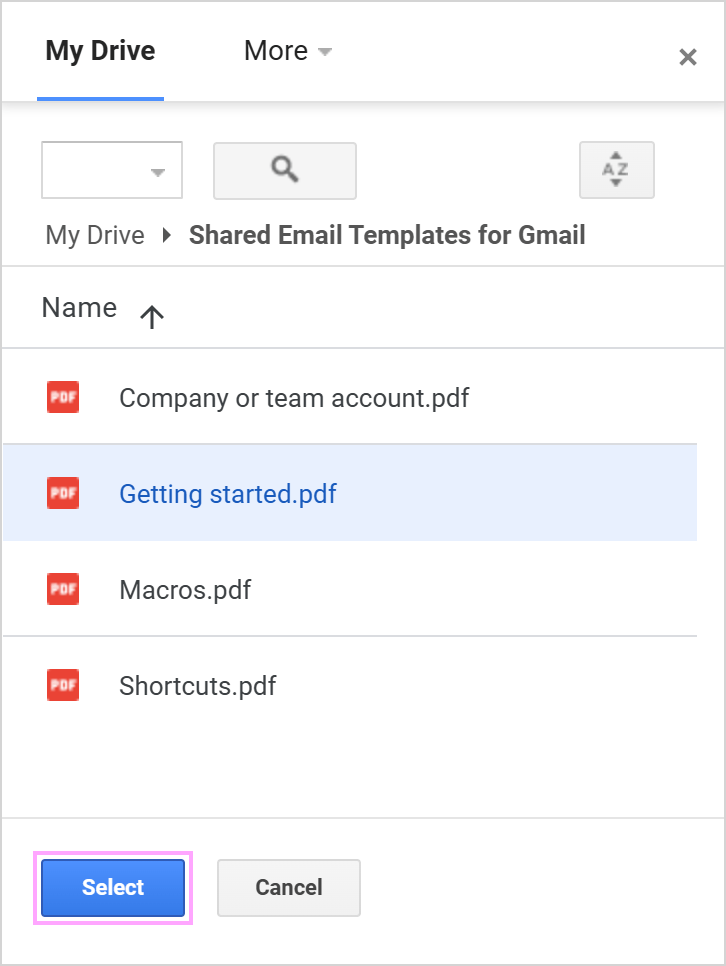
Pick a file.
- 4.
Close the dialog and save the template.
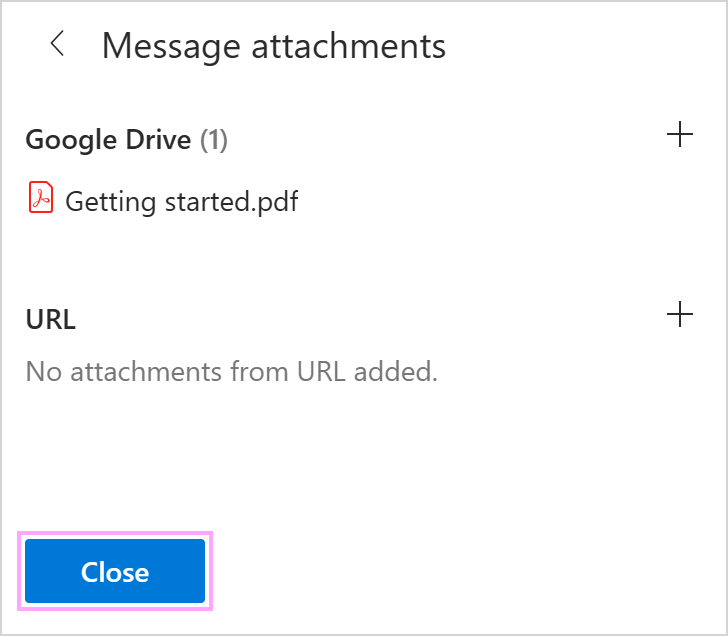
A blue dot on Message attachments shows the template has files attached.
Attach all files from a Google Drive folder
- 1.
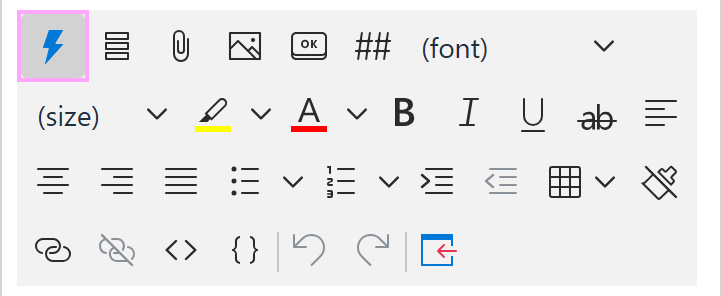
Click Insert macro.
- 2.
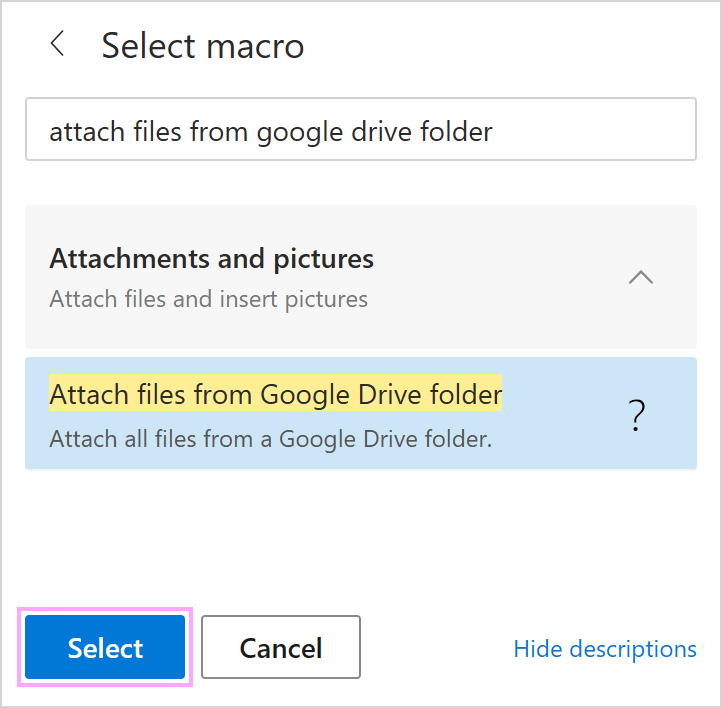
Choose Attach from Google Drive folder.
- 3.
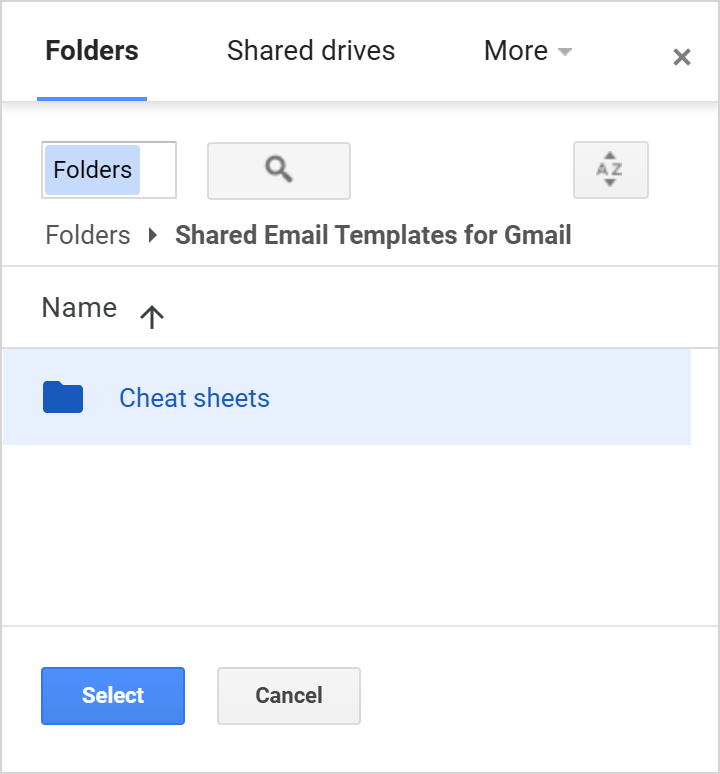
Pick the folder and click Select.
- 4.
Save the template.