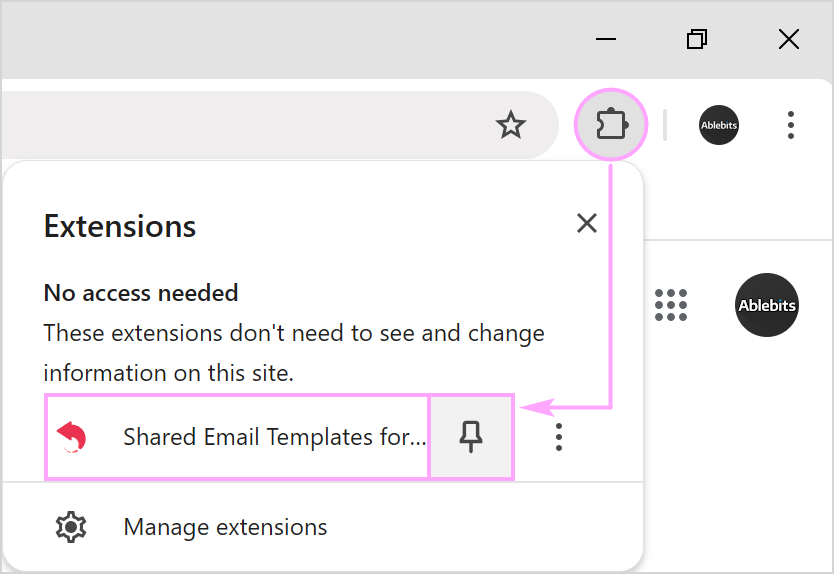
Sign up, sign in and open the panel
Create your Shared Email Templates account with Google, sign in, and open the extension pane while you read, reply to or write an email in Gmail.
Note
If the extension isn’t installed yet, start with Install from Chrome Web Store.
Sign up with Google
To sign up with Google and create your Shared Email Templates account, follow these steps:
- 1.
If you’ve already added Shared Email Templates to your Chrome, run the extension.
- 2.
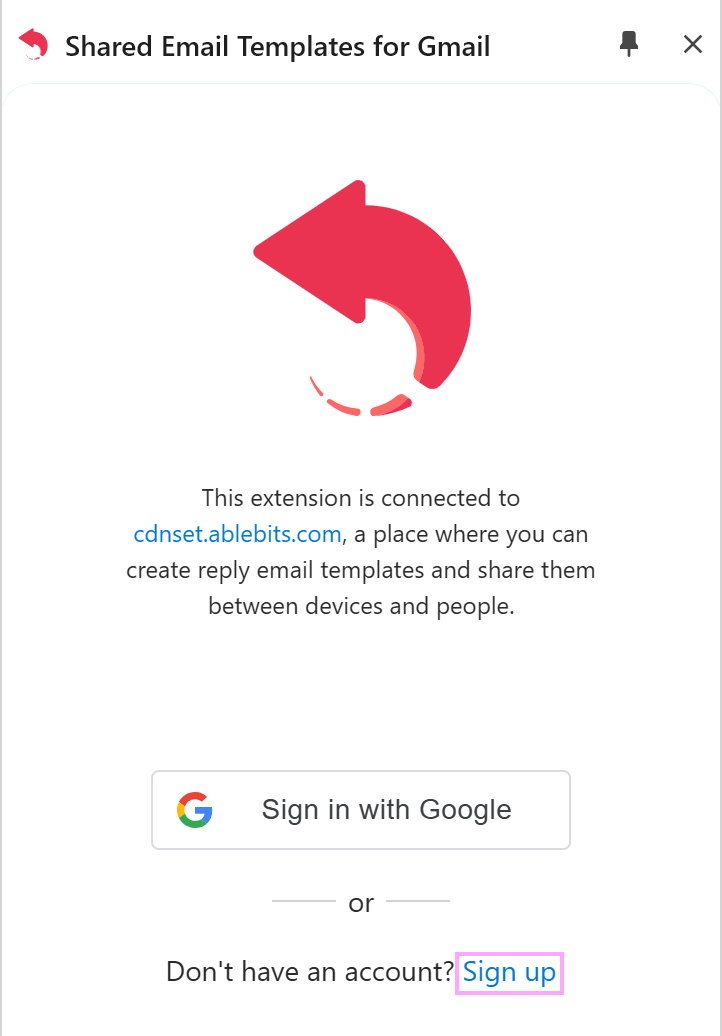
You’ll see the Shared Email Templates sidebar. To start creating your account, select Sign up.
- 3.
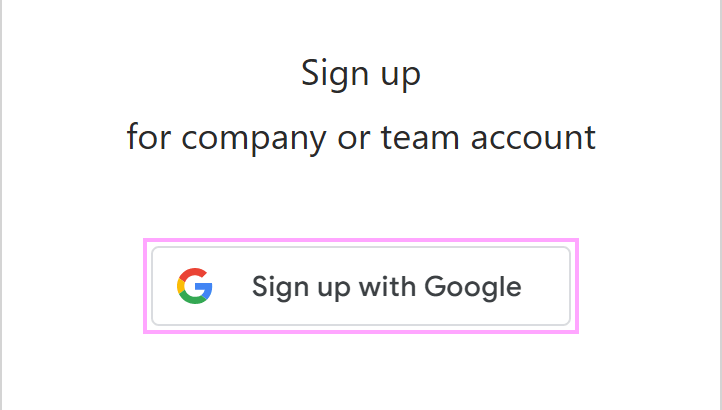
Then click Sign up with Google.
- 4.
Use a Google Accounts dialog that will appear to sign in to your Google account.
Note
When you sign up with Google, we do not get access to your Google passwords.
- 5.
Select a geographic location for your data, read and accept the Terms of Use and Privacy Policy, and then click Sign up.
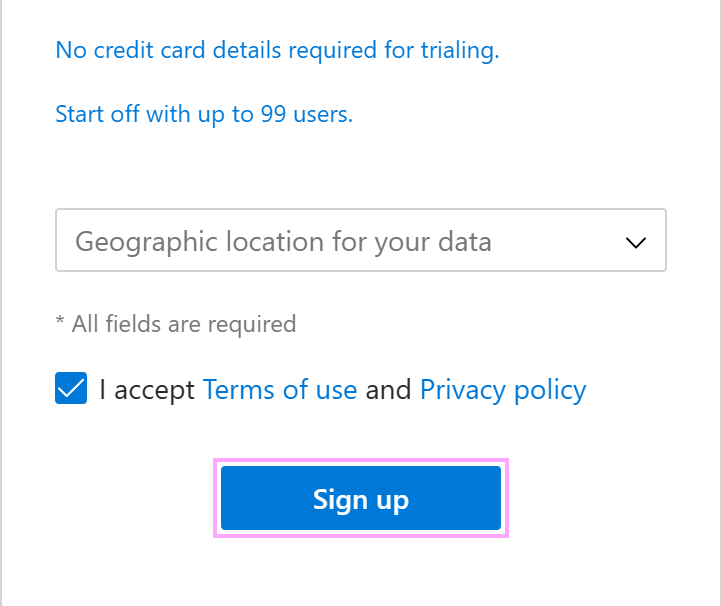
Your Shared Email Templates company or team account is created. Now you can manage your Shared Email Templates users, teams, and subscriptions via the Company account (opens in a new tab) option.
Sign in with Google
- 1.
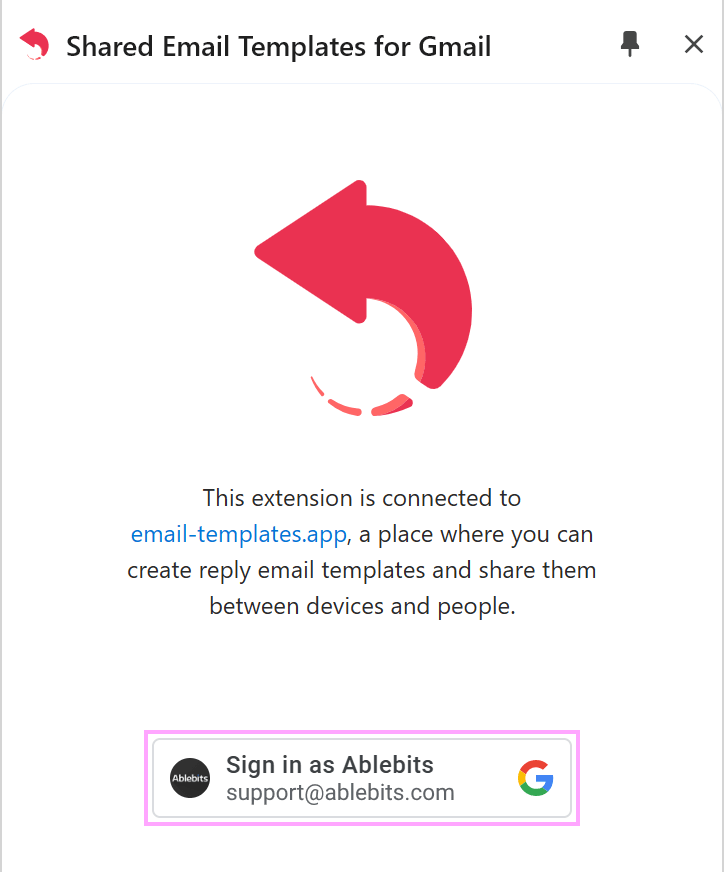
On the Shared Email Templates sidebar in Gmail, select the Sign in as your Google account button.
- 2.
In the Google Accounts dialog that will show up, select the Google account that you want to sign in with.
Note
When you sign in with Google, we do not get access to your Google passwords.
Open the panel
While replying to an email or writing a new one, click the Shared Email Templates icon to the right of the browser address bar.
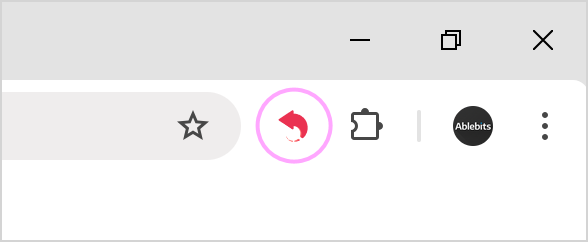
The pane opens on the right side of Gmail.
Tip
Don’t see the icon? Click Extensions in the browser toolbar, find Shared Email Templates and click the pin. The icon will stay next to the address bar.